Components
This page is a work in progress.
Configuration dedicated to components.
Table of Contents
Context Menu
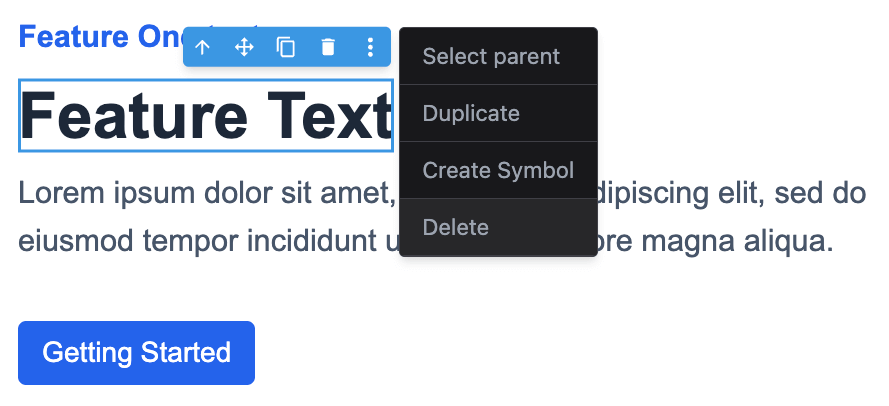
The Context Menu is a dropdown that appears when you right-click on a component in either the canvas or the layers panel. It's also accessible via the component toolbar, which is especially useful on devices without right-click capability.
You can customize the context menu content globally through the components.contextMenu option or on a per-component basis with the contextMenu property.
Below is an example showing how to configure the context menu both globally and for individual components.
- React
- JS
- Demo
import StudioEditor from '@grapesjs/studio-sdk/react';
import '@grapesjs/studio-sdk/style';

// ...
<StudioEditor
  options={{
    // ...
    project: {
      default: {
        pages: [
          {
            name: 'Home',
            component: `
              <div style="padding: 20px; max-width: 400px; margin: 0 auto; display: flex; flex-direction: column;">
                <h1 style="font-size: 3rem">Heading component</h1>
                <div style="margin: 20px 0; font-size: 2rem">Text component</div>
                <img src="https://picsum.photos/seed/image1/300/300"/>
              <div>
            `
          }
        ]
      }
    },
    plugins: [
      editor => {
        // Update context menu for the Heading components
        editor.Components.addType('heading', {
          model: {
            defaults: {
              contextMenu: ({ items, component }) => [
                ...items, // default component items
                {
                  id: 'headingHTML',
                  label: 'Heading HTML',
                  icon: '<svg viewBox="0 0 24 24"><path d="m14.6 16.6 4.6-4.6-4.6-4.6L16 6l6 6-6 6-1.4-1.4m-5.2 0L4.8 12l4.6-4.6L8 6l-6 6 6 6 1.4-1.4Z"/></svg>',
                  onClick: () => alert('Heading HTML: ' + component.toHTML())
                }
              ]
            }
          }
        });
        // Update context menu for the Image components
        editor.Components.addType('image', {
          model: {
            defaults: {
              contextMenu: ({ component }) => [
                // skipping default items
                {
                  id: 'imageItems',
                  label: 'Image items',
                  icon: 'image',
                  items: [
                    { id: 'i1', label: 'Item 1', icon: 'check' },
                    { id: 'i2', label: 'Item 2', onClick: () => alert('Item 2') },
                    {
                      id: 'i3',
                      label: 'Item 3',
                      items: [
                        {
                          id: 'i3-1',
                          label: 'Replace image',
                          icon: 'refresh',
                          onClick: () =>
                            component.set({ src: `https://picsum.photos/seed/${Math.random()}/300/300` })
                        }
                      ]
                    }
                  ]
                }
              ]
            }
          }
        });
      }
    ],
    components: {
      contextMenu: ({ items, component, type, source }) => {
        return [
          {
            id: 'globalBefore',
            label: 'Global: Disabled',
            disabled: true
          },
          // default items that you can 'map' and filter'
          ...items,
          {
            id: 'globalAfter',
            label: 'Global: Info',
            onClick: () => alert(`Type: ${type} \nSource: ${source} \nHTML: ${component.toHTML()}`)
          }
        ];
      }
    },
  }}
/>
import createStudioEditor from '@grapesjs/studio-sdk';
import '@grapesjs/studio-sdk/style';

// ...
createStudioEditor({
  // ...
  project: {
    default: {
      pages: [
        {
          name: 'Home',
          component: `
            <div style="padding: 20px; max-width: 400px; margin: 0 auto; display: flex; flex-direction: column;">
              <h1 style="font-size: 3rem">Heading component</h1>
              <div style="margin: 20px 0; font-size: 2rem">Text component</div>
              <img src="https://picsum.photos/seed/image1/300/300"/>
            <div>
          `
        }
      ]
    }
  },
  plugins: [
    editor => {
      // Update context menu for the Heading components
      editor.Components.addType('heading', {
        model: {
          defaults: {
            contextMenu: ({ items, component }) => [
              ...items, // default component items
              {
                id: 'headingHTML',
                label: 'Heading HTML',
                icon: '<svg viewBox="0 0 24 24"><path d="m14.6 16.6 4.6-4.6-4.6-4.6L16 6l6 6-6 6-1.4-1.4m-5.2 0L4.8 12l4.6-4.6L8 6l-6 6 6 6 1.4-1.4Z"/></svg>',
                onClick: () => alert('Heading HTML: ' + component.toHTML())
              }
            ]
          }
        }
      });
      // Update context menu for the Image components
      editor.Components.addType('image', {
        model: {
          defaults: {
            contextMenu: ({ component }) => [
              // skipping default items
              {
                id: 'imageItems',
                label: 'Image items',
                icon: 'image',
                items: [
                  { id: 'i1', label: 'Item 1', icon: 'check' },
                  { id: 'i2', label: 'Item 2', onClick: () => alert('Item 2') },
                  {
                    id: 'i3',
                    label: 'Item 3',
                    items: [
                      {
                        id: 'i3-1',
                        label: 'Replace image',
                        icon: 'refresh',
                        onClick: () =>
                          component.set({ src: `https://picsum.photos/seed/${Math.random()}/300/300` })
                      }
                    ]
                  }
                ]
              }
            ]
          }
        }
      });
    }
  ],
  components: {
    contextMenu: ({ items, component, type, source }) => {
      return [
        {
          id: 'globalBefore',
          label: 'Global: Disabled',
          disabled: true
        },
        // default items that you can 'map' and filter'
        ...items,
        {
          id: 'globalAfter',
          label: 'Global: Info',
          onClick: () => alert(`Type: ${type} \nSource: ${source} \nHTML: ${component.toHTML()}`)
        }
      ];
    }
  },
})
The components.contextMenu function (global) and the contextMenu property (component-specific) both receive the same arguments:
items: An array of default items that you can modify or filter (e.g., viaitems.maporitems.filter).component: The component instance the menu is being called for.type: The type of the component.source: Indicates where the context menu was called from (canvasorlayers).
The contextMenu function should return an array of context menu items. The default items array is first passed to any component-specific configuration, then to the global one. If the final result is an empty array, the context menu won't be displayed.
Toolbar
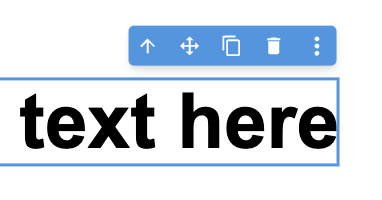
The Toolbar is a component-related set of actions/commands that appear in the canvas near the selected component.
You can customize the toolbar content globally through the components.toolbar option or on a per-component basis with the toolbarItems property.
Below is an example showing how to configure the toolbar both globally and for individual components.
- React
- JS
- Demo
import StudioEditor from '@grapesjs/studio-sdk/react';
import '@grapesjs/studio-sdk/style';

// ...
<StudioEditor
  options={{
    // ...
    project: {
      default: {
        pages: [
          {
            name: 'Home',
            component: `
              <div style="padding: 20px; max-width: 400px; margin: 0 auto; display: flex; flex-direction: column;">
                <h1 style="font-size: 3rem">Heading component</h1>
                <div style="margin: 20px 0; font-size: 2rem">Text component</div>
                <img src="https://picsum.photos/seed/image1/300/300"/>
              <div>
            `
          }
        ]
      }
    },
    plugins: [
      editor => {
        // Update toolbar for the Heading components
        editor.Components.addType('heading', {
          model: {
            defaults: {
              toolbarItems: ({ items, component }) => [
                ...items, // default component items
                {
                  id: 'component-update',
                  label:
                    '<svg viewBox="0 0 24 24"><path d="M21,10.12H14.22L16.96,7.3C14.23,4.6 9.81,4.5 7.08,7.2C4.35,9.91 4.35,14.28 7.08,17C9.81,19.7 14.23,19.7 16.96,17C18.32,15.65 19,14.08 19,12.1H21C21,14.08 20.12,16.65 18.36,18.39C14.85,21.87 9.15,21.87 5.64,18.39C2.14,14.92 2.11,9.28 5.62,5.81C9.13,2.34 14.76,2.34 18.27,5.81L21,3V10.12M12.5,8V12.25L16,14.33L15.28,15.54L11,13V8H12.5Z" /></svg>',
                  command: () => {
                    component.components('Updated heading: ' + new Date().toLocaleTimeString());
                  }
                }
              ]
            }
          }
        });
        // Update toolbar for the Image components
        editor.Components.addType('image', {
          model: {
            defaults: {
              toolbarItems: ({ component }) => [
                // skipping default items
                {
                  id: 'component-copy-html',
                  label:
                    '<svg viewBox="0 0 24 24"><path d="M12.89,3L14.85,3.4L11.11,21L9.15,20.6L12.89,3M19.59,12L16,8.41V5.58L22.42,12L16,18.41V15.58L19.59,12M1.58,12L8,5.58V8.41L4.41,12L8,15.58V18.41L1.58,12Z" /></svg>',
                  command: () => {
                    navigator.clipboard.writeText(component.toHTML());
                    alert('Image HTML copied to clipboard');
                  }
                },
                {
                  id: 'component-fetch-image',
                  label:
                    '<svg viewBox="0 0 24 24"><path d="M8.5 13.5L5 18H13.03C13.11 19.1 13.47 20.12 14.03 21H5C3.9 21 3 20.11 3 19V5C3 3.9 3.9 3 5 3H19C20.1 3 21 3.89 21 5V11.18C20.5 11.07 20 11 19.5 11C17.78 11 16.23 11.67 15.07 12.76L14.5 12L11 16.5L8.5 13.5M19 20C17.62 20 16.5 18.88 16.5 17.5C16.5 17.1 16.59 16.72 16.76 16.38L15.67 15.29C15.25 15.92 15 16.68 15 17.5C15 19.71 16.79 21.5 19 21.5V23L21.25 20.75L19 18.5V20M19 13.5V12L16.75 14.25L19 16.5V15C20.38 15 21.5 16.12 21.5 17.5C21.5 17.9 21.41 18.28 21.24 18.62L22.33 19.71C22.75 19.08 23 18.32 23 17.5C23 15.29 21.21 13.5 19 13.5Z" /></svg>',
                  command: async () => {
                    await fetch('https://picsum.photos/200').then(async ({ url }) => {
                      component.setAttributes({ src: url });
                    });
                  }
                }
              ]
            }
          }
        });
      }
    ],
    components: {
      toolbar: ({ items, component }) => {
        return [
          {
            id: 'global-preview',
            label:
              '<svg viewBox="0 0 24 24"><path d="M12,9A3,3 0 0,0 9,12A3,3 0 0,0 12,15A3,3 0 0,0 15,12A3,3 0 0,0 12,9M12,17A5,5 0 0,1 7,12A5,5 0 0,1 12,7A5,5 0 0,1 17,12A5,5 0 0,1 12,17M12,4.5C7,4.5 2.73,7.61 1,12C2.73,16.39 7,19.5 12,19.5C17,19.5 21.27,16.39 23,12C21.27,7.61 17,4.5 12,4.5Z" /></svg>',
            command: 'core:preview'
          },
          // default items that you can 'map' and filter'
          ...items,
          {
            id: 'global-info',
            label:
              '<svg viewBox="0 0 24 24"><path d="M13,9H11V7H13M13,17H11V11H13M12,2A10,10 0 0,0 2,12A10,10 0 0,0 12,22A10,10 0 0,0 22,12A10,10 0 0,0 12,2Z" /></svg>',
            command: () => {
              alert('Component name: ' + component.getName());
            }
          }
        ];
      }
    },

  }}
/>
import createStudioEditor from '@grapesjs/studio-sdk';
import '@grapesjs/studio-sdk/style';

// ...
createStudioEditor({
  // ...
  project: {
    default: {
      pages: [
        {
          name: 'Home',
          component: `
            <div style="padding: 20px; max-width: 400px; margin: 0 auto; display: flex; flex-direction: column;">
              <h1 style="font-size: 3rem">Heading component</h1>
              <div style="margin: 20px 0; font-size: 2rem">Text component</div>
              <img src="https://picsum.photos/seed/image1/300/300"/>
            <div>
          `
        }
      ]
    }
  },
  plugins: [
    editor => {
      // Update toolbar for the Heading components
      editor.Components.addType('heading', {
        model: {
          defaults: {
            toolbarItems: ({ items, component }) => [
              ...items, // default component items
              {
                id: 'component-update',
                label:
                  '<svg viewBox="0 0 24 24"><path d="M21,10.12H14.22L16.96,7.3C14.23,4.6 9.81,4.5 7.08,7.2C4.35,9.91 4.35,14.28 7.08,17C9.81,19.7 14.23,19.7 16.96,17C18.32,15.65 19,14.08 19,12.1H21C21,14.08 20.12,16.65 18.36,18.39C14.85,21.87 9.15,21.87 5.64,18.39C2.14,14.92 2.11,9.28 5.62,5.81C9.13,2.34 14.76,2.34 18.27,5.81L21,3V10.12M12.5,8V12.25L16,14.33L15.28,15.54L11,13V8H12.5Z" /></svg>',
                command: () => {
                  component.components('Updated heading: ' + new Date().toLocaleTimeString());
                }
              }
            ]
          }
        }
      });
      // Update toolbar for the Image components
      editor.Components.addType('image', {
        model: {
          defaults: {
            toolbarItems: ({ component }) => [
              // skipping default items
              {
                id: 'component-copy-html',
                label:
                  '<svg viewBox="0 0 24 24"><path d="M12.89,3L14.85,3.4L11.11,21L9.15,20.6L12.89,3M19.59,12L16,8.41V5.58L22.42,12L16,18.41V15.58L19.59,12M1.58,12L8,5.58V8.41L4.41,12L8,15.58V18.41L1.58,12Z" /></svg>',
                command: () => {
                  navigator.clipboard.writeText(component.toHTML());
                  alert('Image HTML copied to clipboard');
                }
              },
              {
                id: 'component-fetch-image',
                label:
                  '<svg viewBox="0 0 24 24"><path d="M8.5 13.5L5 18H13.03C13.11 19.1 13.47 20.12 14.03 21H5C3.9 21 3 20.11 3 19V5C3 3.9 3.9 3 5 3H19C20.1 3 21 3.89 21 5V11.18C20.5 11.07 20 11 19.5 11C17.78 11 16.23 11.67 15.07 12.76L14.5 12L11 16.5L8.5 13.5M19 20C17.62 20 16.5 18.88 16.5 17.5C16.5 17.1 16.59 16.72 16.76 16.38L15.67 15.29C15.25 15.92 15 16.68 15 17.5C15 19.71 16.79 21.5 19 21.5V23L21.25 20.75L19 18.5V20M19 13.5V12L16.75 14.25L19 16.5V15C20.38 15 21.5 16.12 21.5 17.5C21.5 17.9 21.41 18.28 21.24 18.62L22.33 19.71C22.75 19.08 23 18.32 23 17.5C23 15.29 21.21 13.5 19 13.5Z" /></svg>',
                command: async () => {
                  await fetch('https://picsum.photos/200').then(async ({ url }) => {
                    component.setAttributes({ src: url });
                  });
                }
              }
            ]
          }
        }
      });
    }
  ],
  components: {
    toolbar: ({ items, component }) => {
      return [
        {
          id: 'global-preview',
          label:
            '<svg viewBox="0 0 24 24"><path d="M12,9A3,3 0 0,0 9,12A3,3 0 0,0 12,15A3,3 0 0,0 15,12A3,3 0 0,0 12,9M12,17A5,5 0 0,1 7,12A5,5 0 0,1 12,7A5,5 0 0,1 17,12A5,5 0 0,1 12,17M12,4.5C7,4.5 2.73,7.61 1,12C2.73,16.39 7,19.5 12,19.5C17,19.5 21.27,16.39 23,12C21.27,7.61 17,4.5 12,4.5Z" /></svg>',
          command: 'core:preview'
        },
        // default items that you can 'map' and filter'
        ...items,
        {
          id: 'global-info',
          label:
            '<svg viewBox="0 0 24 24"><path d="M13,9H11V7H13M13,17H11V11H13M12,2A10,10 0 0,0 2,12A10,10 0 0,0 12,22A10,10 0 0,0 22,12A10,10 0 0,0 12,2Z" /></svg>',
          command: () => {
            alert('Component name: ' + component.getName());
          }
        }
      ];
    }
  },

})
The components.toolbar function (global) and the toolbarItems property (component-specific) both receive the same arguments:
items: An array of default items that you can modify or filter (e.g., viaitems.maporitems.filter).component: The component instance the menu is being called for.editor: The studio editor instance.
The toolbar function should return an array of toolbar items. The default items array is first passed to any component-specific configuration, then to the global one. If the final result is an empty array, the toolbar won't be displayed.
You can execute an action by providing a string value to the command property. The command should be registered in the editor instance (see default commands). You can also provide a function to the command property to execute custom logic, including asynchronous operations.
Traits
TBD