Pages
Pages allow you to create projects with multiple pages, making it ideal for various types of web projects. In Studio SDK, the Pages Manager is a direct extension of the GrapesJS Pages module, meaning you can always reuse the existing Pages API for flexibility and consistency.

Table of Contents
Initialization
During the web project type initialization, pages are enabled by default with all available features.
Pages are automatically disabled in the email project type.
- React
- JS
- 🍇 Demo
import StudioEditor from '@grapesjs/studio-sdk/react';
import '@grapesjs/studio-sdk/style';

// ...
<StudioEditor
  options={{
    // ...
    project: {
      type: 'web',
      // The default project to use for new projects
      default: {
        pages: [
          { name: 'Home', component: '<h1>Home page</h1>' },
          { name: 'About', component: '<h1>About page</h1>' },
          { name: 'Contact', component: '<h1>Contact page</h1>' },
        ]
      },
    }
  }}
/>
import createStudioEditor from '@grapesjs/studio-sdk';
import '@grapesjs/studio-sdk/style';

// ...
createStudioEditor({
  // ...
  project: {
    type: 'web',
    // The default project to use for new projects
    default: {
      pages: [
        { name: 'Home', component: '<h1>Home page</h1>' },
        { name: 'About', component: '<h1>About page</h1>' },
        { name: 'Contact', component: '<h1>Contact page</h1>' },
      ]
    },
  }
})
If you're working on a single-page project (e.g., a landing page builder), you can easily disable the Pages Manager.
- React
- JS
- 🍇 Demo
import StudioEditor from '@grapesjs/studio-sdk/react';
import '@grapesjs/studio-sdk/style';

// ...
<StudioEditor
  options={{
    // ...
    pages: false
  }}
/>
import createStudioEditor from '@grapesjs/studio-sdk';
import '@grapesjs/studio-sdk/style';

// ...
createStudioEditor({
  // ...
  pages: false
})
Configuration
By default, users can manage pages without restrictions, including creating, duplicating, or deleting them. With Studio SDK, you can easily customize each of these operations to suit your needs.
Add Page

By default, new pages are created with a basic name and content. You can easily modify this behavior by implementing your own page creation logic.
- React
- JS
- 🍇 Demo
import StudioEditor from '@grapesjs/studio-sdk/react';
import '@grapesjs/studio-sdk/style';

// ...
<StudioEditor
  options={{
    // ...
    pages: {
      add: ({ editor, rename }) => {
        // Add new page via GrapesJS API
        const page = editor.Pages.add({
          name: 'New page',
          component: '<div>New page</div>'
        }, {
          select: true // Select added page
        });
        rename(page); // Trigger page rename action
      },
    }
  }}
/>
import createStudioEditor from '@grapesjs/studio-sdk';
import '@grapesjs/studio-sdk/style';

// ...
createStudioEditor({
  // ...
  pages: {
    add: ({ editor, rename }) => {
      // Add new page via GrapesJS API
      const page = editor.Pages.add({
        name: 'New page',
        component: '<div>New page</div>'
      }, {
        select: true // Select added page
      });
      rename(page); // Trigger page rename action
    },
  }
})
If you want to disable page creation, simply set the add option to false. This will hide the Add button.
- React
- JS
- 🍇 Demo
import StudioEditor from '@grapesjs/studio-sdk/react';
import '@grapesjs/studio-sdk/style';

// ...
<StudioEditor
  options={{
    // ...
    pages: {
      add: false,
    }
  }}
/>
import createStudioEditor from '@grapesjs/studio-sdk';
import '@grapesjs/studio-sdk/style';

// ...
createStudioEditor({
  // ...
  pages: {
    add: false,
  }
})
Duplicate Page

Users can duplicate pages through the command items (3 dots icon) available on the selected page. You can customize the duplication logic using the duplicate option.
- React
- JS
- 🍇 Demo
import StudioEditor from '@grapesjs/studio-sdk/react';
import '@grapesjs/studio-sdk/style';

// ...
<StudioEditor
  options={{
    // ...
    pages: {
      duplicate: ({ editor, page, rename }) => {
        const root = page.getMainComponent();
        const newPage = editor.Pages.add({
          name: `${page.getName()} (Copy)`,
          component: root.clone(),
        }, { select: true });

        rename(newPage);
      },

    }
  }}
/>
import createStudioEditor from '@grapesjs/studio-sdk';
import '@grapesjs/studio-sdk/style';

// ...
createStudioEditor({
  // ...
  pages: {
    duplicate: ({ editor, page, rename }) => {
      const root = page.getMainComponent();
      const newPage = editor.Pages.add({
        name: `${page.getName()} (Copy)`,
        component: root.clone(),
      }, { select: true });

      rename(newPage);
    },

  }
})
To disable page duplication, set the duplicate option to false. This will remove the duplication command from the menu.
- React
- JS
- 🍇 Demo
import StudioEditor from '@grapesjs/studio-sdk/react';
import '@grapesjs/studio-sdk/style';

// ...
<StudioEditor
  options={{
    // ...
    pages: {
      duplicate: false,
    }
  }}
/>
import createStudioEditor from '@grapesjs/studio-sdk';
import '@grapesjs/studio-sdk/style';

// ...
createStudioEditor({
  // ...
  pages: {
    duplicate: false,
  }
})
Remove Page
Page removal is also available in the command items and can be easily customized.
- React
- JS
- 🍇 Demo
import StudioEditor from '@grapesjs/studio-sdk/react';
import '@grapesjs/studio-sdk/style';

// ...
<StudioEditor
  options={{
    // ...
    pages: {
      remove: ({ editor, page }) => {
        const { Pages } = editor;
        if (confirm('Are you sure?')) {
          Pages.remove(page);
        }
        // Select the first page
        Pages.select(Pages.getAll()[0]);
      },
    }
  }}
/>
import createStudioEditor from '@grapesjs/studio-sdk';
import '@grapesjs/studio-sdk/style';

// ...
createStudioEditor({
  // ...
  pages: {
    remove: ({ editor, page }) => {
      const { Pages } = editor;
      if (confirm('Are you sure?')) {
        Pages.remove(page);
      }
      // Select the first page
      Pages.select(Pages.getAll()[0]);
    },
  }
})
Like other commands, you can easily disable the page removal option if needed.
- React
- JS
- 🍇 Demo
import StudioEditor from '@grapesjs/studio-sdk/react';
import '@grapesjs/studio-sdk/style';

// ...
<StudioEditor
  options={{
    // ...
    pages: {
      remove: false,
    }
  }}
/>
import createStudioEditor from '@grapesjs/studio-sdk';
import '@grapesjs/studio-sdk/style';

// ...
createStudioEditor({
  // ...
  pages: {
    remove: false,
  }
})
Command Items
If you need to add more operations to your pages, you can customize the page command items using the commandItems option. This allows you to tailor the set of actions available on each page according to your specific requirements.
- React
- JS
- 🍇 Demo
import StudioEditor from '@grapesjs/studio-sdk/react';
import '@grapesjs/studio-sdk/style';

// ...
<StudioEditor
  options={{
    // ...
    pages: {
      commandItems: ({ items }) => {
        return [
          ...items, // default items
          {
            id: 'custom-command',
            label: 'Custom command',
            cmd: ({ page }) => alert('Page: ' + page.getName())
          }
        ];
      }
    }
  }}
/>
import createStudioEditor from '@grapesjs/studio-sdk';
import '@grapesjs/studio-sdk/style';

// ...
createStudioEditor({
  // ...
  pages: {
    commandItems: ({ items }) => {
      return [
        ...items, // default items
        {
          id: 'custom-command',
          label: 'Custom command',
          cmd: ({ page }) => alert('Page: ' + page.getName())
        }
      ];
    }
  }
})

Settings

Studio includes a built-in page settings panel that enables users to configure various aspects of their HTML page. This includes meta elements for SEO, social media tags, and the inclusion of custom code.
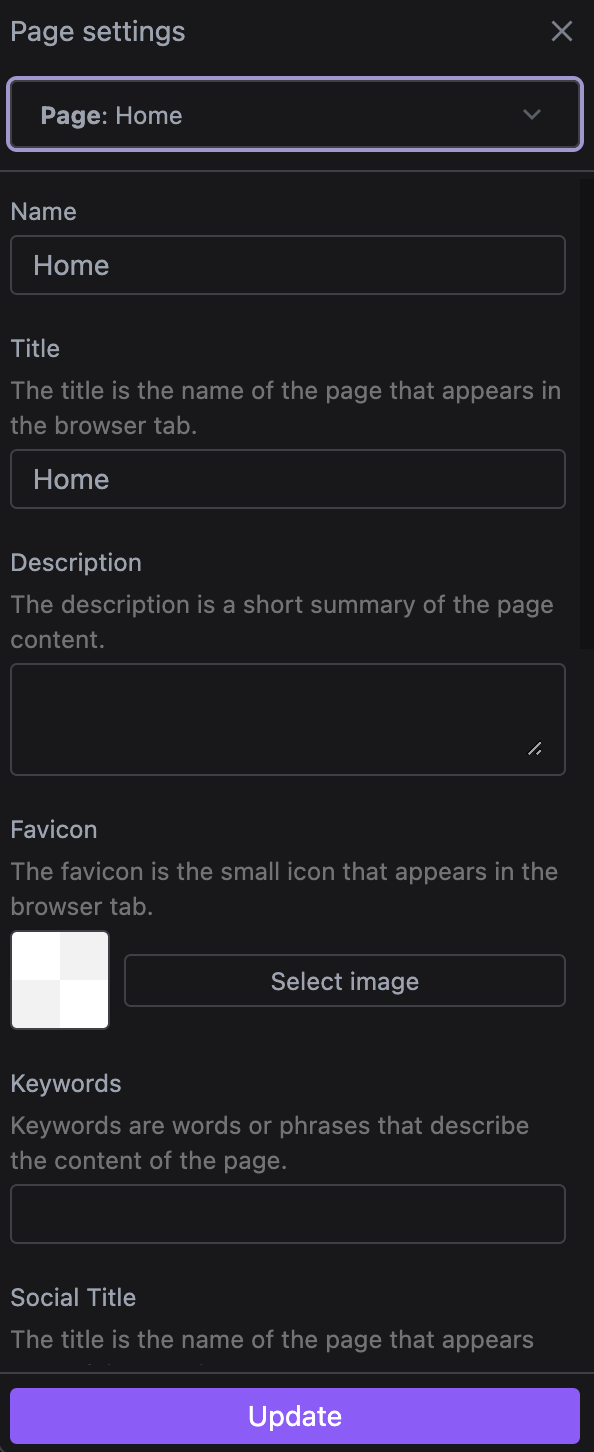
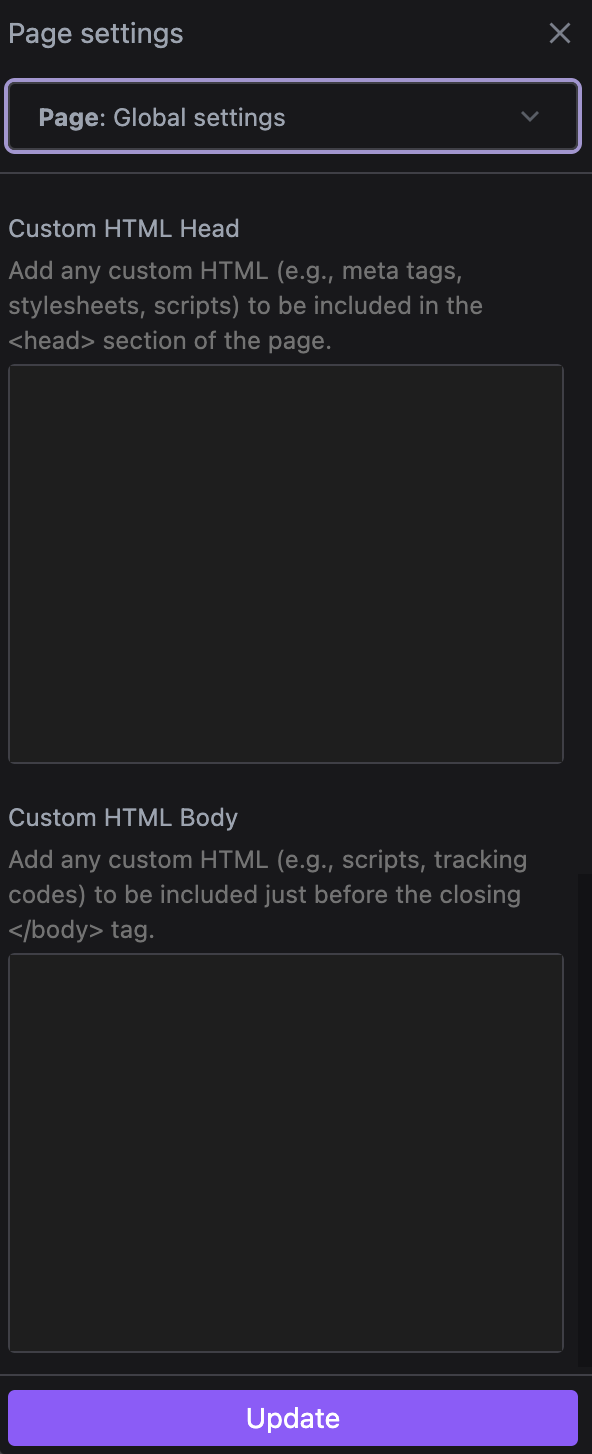
To disable the settings panel, simply pass false to the settings option.
- React
- JS
- 🍇 Demo
import StudioEditor from '@grapesjs/studio-sdk/react';
import '@grapesjs/studio-sdk/style';

// ...
<StudioEditor
  options={{
    // ...
    pages: {
      settings: false,
    }
  }}
/>
import createStudioEditor from '@grapesjs/studio-sdk';
import '@grapesjs/studio-sdk/style';

// ...
createStudioEditor({
  // ...
  pages: {
    settings: false,
  }
})
Load page settings
All page settings, both global and page-specific, can be loaded from your project JSON file (e.g., retrieved from your Storage or provided as a Template).
Page-specific settings can also be parsed directly from HTML strings in your project file, if the page is initialized as an HTML string. Global settings are stored and accessed via projectFile.custom.globalPageSettings.
Below is an example demonstrating how to load different pages along with their global and page-specific settings.
- React
- JS
- 🍇 Demo
import StudioEditor from '@grapesjs/studio-sdk/react';
import '@grapesjs/studio-sdk/style';

// ...
<StudioEditor
  options={{
    // ...
    project: {
      type: 'web',
      default: {
        custom: {
          globalPageSettings: {
            title: 'Global title',
            description: 'Global description',
            customCodeHead: `
              <meta name="meta-global" content="Global meta"/>
              <link href="https://cdn.jsdelivr.net/npm/[email protected]/reset.min.css" rel="stylesheet">
              <script src="https://cdnjs.cloudflare.com/ajax/libs/jquery/3.7.1/jquery.min.js"></script>
              <script>console.log('[GLOBAL]: Custom HTML head');</script>
              <style>.title { font-size: 5rem; }</style>
            `,
            customCodeBody: '<div>Global Custom HTML body</div>',
          }
        },
        pages: [
          {
            name: 'Home',
            component: `<!DOCTYPE html>
              <html>
                <head>
                  <title>Home title</title>
                  <meta name="description" content="Home description" />
                  <meta name="meta-home" content="Home meta">
                  <script>console.log('[HOME]: Custom HTML head');</script>
                </head>
                <body>
                  <div class="title">Home page</div>
                  <div data-custom-html-body>
                    <div>Home Custom HTML body</div>
                    <script>
                      console.log('[HOME]: Custom HTML body');
                    </script>
                  </div>
                </body>
              <html>`
          },
          {
            name: 'About',
            settings: { slug: 'about-slug' },
            component: `<!DOCTYPE html>
              <html>
                <head>
                  <title>About title</title>
                  <meta name="description" content="About description" />
                  <meta name="meta-about" content="About meta">
                  <script>console.log('[ABOUT]: Custom HTML head');</script>
                </head>
                <body>
                  <div class="title">About page</div>
                </body>
              <html>`
          },
          {
            name: 'Contact',
            settings: { slug: 'contact-slug' },
            component: `<!DOCTYPE html>
              <html>
                <body>
                  <div class="title">Contact page</div>
                </body>
              <html>`
          }
        ]
      },
    }
  }}
/>
import createStudioEditor from '@grapesjs/studio-sdk';
import '@grapesjs/studio-sdk/style';

// ...
createStudioEditor({
  // ...
  project: {
    type: 'web',
    default: {
      custom: {
        globalPageSettings: {
          title: 'Global title',
          description: 'Global description',
          customCodeHead: `
            <meta name="meta-global" content="Global meta"/>
            <link href="https://cdn.jsdelivr.net/npm/[email protected]/reset.min.css" rel="stylesheet">
            <script src="https://cdnjs.cloudflare.com/ajax/libs/jquery/3.7.1/jquery.min.js"></script>
            <script>console.log('[GLOBAL]: Custom HTML head');</script>
            <style>.title { font-size: 5rem; }</style>
          `,
          customCodeBody: '<div>Global Custom HTML body</div>',
        }
      },
      pages: [
        {
          name: 'Home',
          component: `<!DOCTYPE html>
            <html>
              <head>
                <title>Home title</title>
                <meta name="description" content="Home description" />
                <meta name="meta-home" content="Home meta">
                <script>console.log('[HOME]: Custom HTML head');</script>
              </head>
              <body>
                <div class="title">Home page</div>
                <div data-custom-html-body>
                  <div>Home Custom HTML body</div>
                  <script>
                    console.log('[HOME]: Custom HTML body');
                  </script>
                </div>
              </body>
            <html>`
        },
        {
          name: 'About',
          settings: { slug: 'about-slug' },
          component: `<!DOCTYPE html>
            <html>
              <head>
                <title>About title</title>
                <meta name="description" content="About description" />
                <meta name="meta-about" content="About meta">
                <script>console.log('[ABOUT]: Custom HTML head');</script>
              </head>
              <body>
                <div class="title">About page</div>
              </body>
            <html>`
        },
        {
          name: 'Contact',
          settings: { slug: 'contact-slug' },
          component: `<!DOCTYPE html>
            <html>
              <body>
                <div class="title">Contact page</div>
              </body>
            <html>`
        }
      ]
    },
  }
})
I18n
All the labels of the page manager are connected to the i18n GrapesJS module. Below, you'll find the reference for each key.
- React
- JS
- 🍇 Demo
import StudioEditor from '@grapesjs/studio-sdk/react';
import '@grapesjs/studio-sdk/style';

// ...
<StudioEditor
  options={{
    // ...
    i18n: {
      locales: {
        en: {
          pageManager: {
            pages: 'Pages',
            page: 'Page',
            newPage: 'New Page',
            add: 'Add page',
            rename: 'Rename',
            duplicate: 'Duplicate',
            copy: 'Copy',
            delete: 'Delete',
            deletePage: 'Delete Page',
            confirmDelete: 'Are you sure you want to delete the page?',
            settings: {
              label: 'Settings',
              title: 'Page settings',
              global: 'Global settings',
              fields: {
                name: {
                  label: 'Name'
                },
                slug: {
                  label: 'Slug',
                  description: '...'
                },
                favicon: {
                  label: 'Favicon',
                  description: '...'
                },
                title: {
                  label: 'Title',
                  description: '...'
                },
                description: {
                  label: 'Description',
                  description: '...'
                },
                keywords: {
                  label: 'Keywords',
                  description: '...'
                },
                socialTitle: {
                  label: 'Social title',
                  description: '...'
                },
                socialImage: {
                  label: 'Social image',
                  description: '...'
                },
                socialDescription: {
                  label: 'Social description',
                  description: '...'
                },
                customCodeHead: {
                  label: 'Custom HTML head',
                  description: '...'
                },
                customCodeBody: {
                  label: 'Custom HTML body',
                  description: '...'
                }
              }
            }
          }
        }
      }
    }
  }}
/>
import createStudioEditor from '@grapesjs/studio-sdk';
import '@grapesjs/studio-sdk/style';

// ...
createStudioEditor({
  // ...
  i18n: {
    locales: {
      en: {
        pageManager: {
          pages: 'Pages',
          page: 'Page',
          newPage: 'New Page',
          add: 'Add page',
          rename: 'Rename',
          duplicate: 'Duplicate',
          copy: 'Copy',
          delete: 'Delete',
          deletePage: 'Delete Page',
          confirmDelete: 'Are you sure you want to delete the page?',
          settings: {
            label: 'Settings',
            title: 'Page settings',
            global: 'Global settings',
            fields: {
              name: {
                label: 'Name'
              },
              slug: {
                label: 'Slug',
                description: '...'
              },
              favicon: {
                label: 'Favicon',
                description: '...'
              },
              title: {
                label: 'Title',
                description: '...'
              },
              description: {
                label: 'Description',
                description: '...'
              },
              keywords: {
                label: 'Keywords',
                description: '...'
              },
              socialTitle: {
                label: 'Social title',
                description: '...'
              },
              socialImage: {
                label: 'Social image',
                description: '...'
              },
              socialDescription: {
                label: 'Social description',
                description: '...'
              },
              customCodeHead: {
                label: 'Custom HTML head',
                description: '...'
              },
              customCodeBody: {
                label: 'Custom HTML body',
                description: '...'
              }
            }
          }
        }
      }
    }
  }
})
Commands
Here below you can find a list of commands that allow you to interact programmatically with the Page Manager.
Get config
Get current Pages config.
const config = editor.runCommand(StudioCommands.getPagesConfig);
Update config
Update Pages config.
editor.runCommand(StudioCommands.setPagesConfig, {
  config: { add: false }
});
Get page settings
Get page settings panel state.
const state: PanelPageSettingsState = editor.runCommand(StudioCommands.getPageSettings);
Update page settings
Update page settings panel state.
editor.runCommand(StudioCommands.setPageSettings, { isOpen: true });
Project files
Get project files.
const files: ProjectFile[] = await editor.runCommand(StudioCommands.projectFiles);
Example
- React
- JS
- 🍇 Demo
import StudioEditor from '@grapesjs/studio-sdk/react';
import '@grapesjs/studio-sdk/style';

// ...
const onReady = (editor) => {
  // store the editor in your state manager
};

const toggleAddPage = () => {
  const config = editor.runCommand(StudioCommands.getPagesConfig) || {};
  editor.runCommand(StudioCommands.setPagesConfig, {
    config: { add: !config.add }
  });
}
const togglePageSettings = () => {
  const state = editor.runCommand(StudioCommands.getPageSettings) || {};
  editor.runCommand(StudioCommands.setPageSettings, { isOpen: !state.isOpen });
}

// ...
<StudioEditor
  options={{
    onReady,
  }}
/>
import createStudioEditor from '@grapesjs/studio-sdk';
import '@grapesjs/studio-sdk/style';

// ...
const onReady = (editor) => {
  // store the editor in your state manager
};

const toggleAddPage = () => {
  const config = editor.runCommand(StudioCommands.getPagesConfig) || {};
  editor.runCommand(StudioCommands.setPagesConfig, {
    config: { add: !config.add }
  });
}
const togglePageSettings = () => {
  const state = editor.runCommand(StudioCommands.getPageSettings) || {};
  editor.runCommand(StudioCommands.setPageSettings, { isOpen: !state.isOpen });
}

// ...
createStudioEditor({
  onReady,
})