Data Sources
Data Sources in Studio SDK unlock dynamic content creation by letting users bind components to structured data, no custom code required. This feature enables variable rendering, conditional logic, and repeatable collections directly within the visual editor. From personalized emails to adaptive web pages and smart document layouts, users can build rich, data-driven templates with ease. A built-in UI makes connecting data intuitive and accessible for everyone.
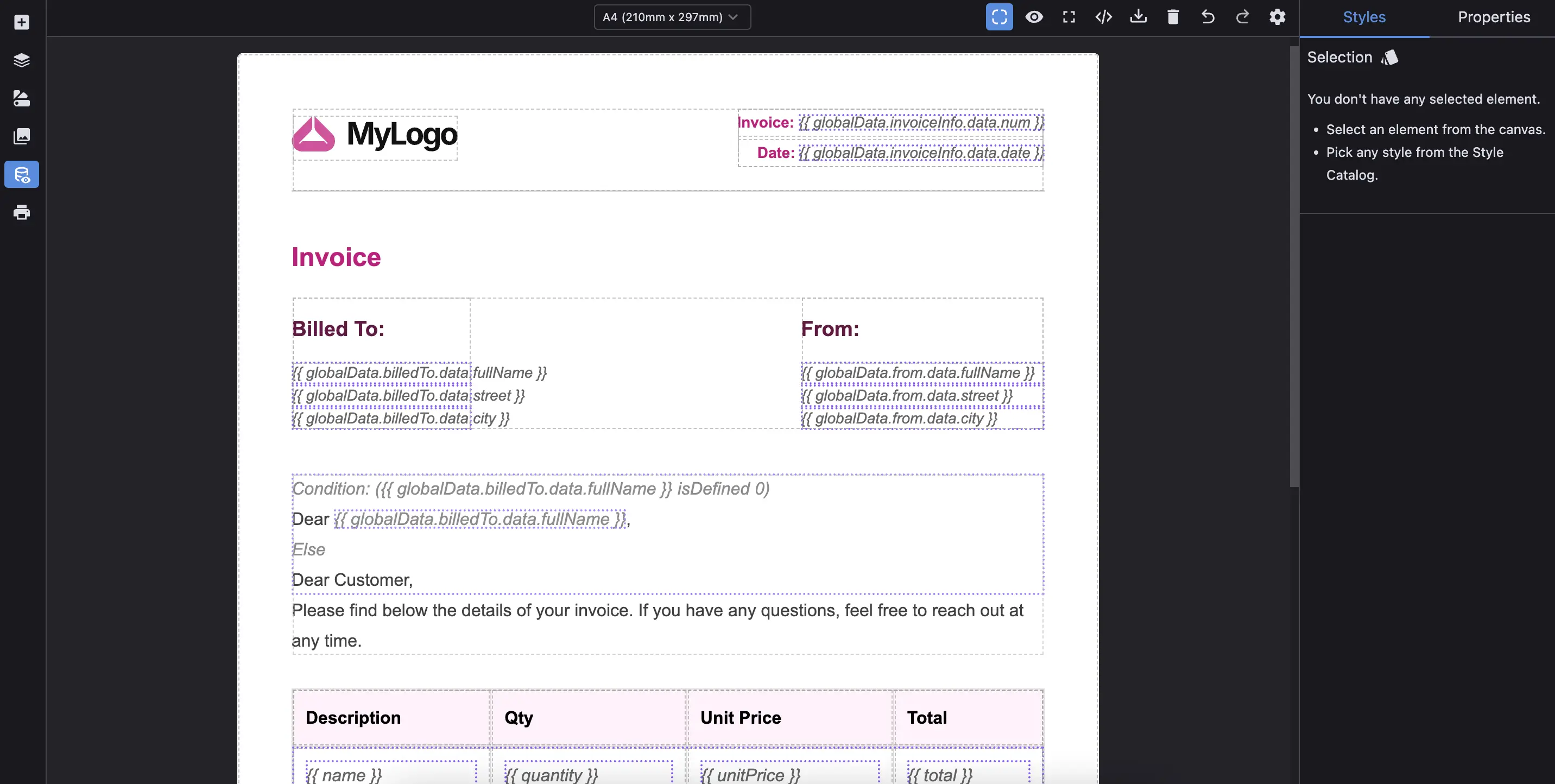
Table of Contents
When do you need Data Sources?
Use Data Sources when you want your content to adapt based on dynamic data. Whether you're building a personalized email, a product listing, or a user-specific dashboard, Data Sources make it easy to connect your content to real data. Here's what you can do:
- Bind data to components: Display values like a user's name, product titles, or pricing directly inside the content.
- Centralize your data: Keep your data in one place and reuse it across pages, templates, and components.
- Show or hide content with conditions: Render content only when specific conditions are met.
- Flexible export options: Choose how your content gets exported: either with data fully resolved (ready-to-publish) or as templates using placeholders/merge tags (for use with external template engines).
Initialization
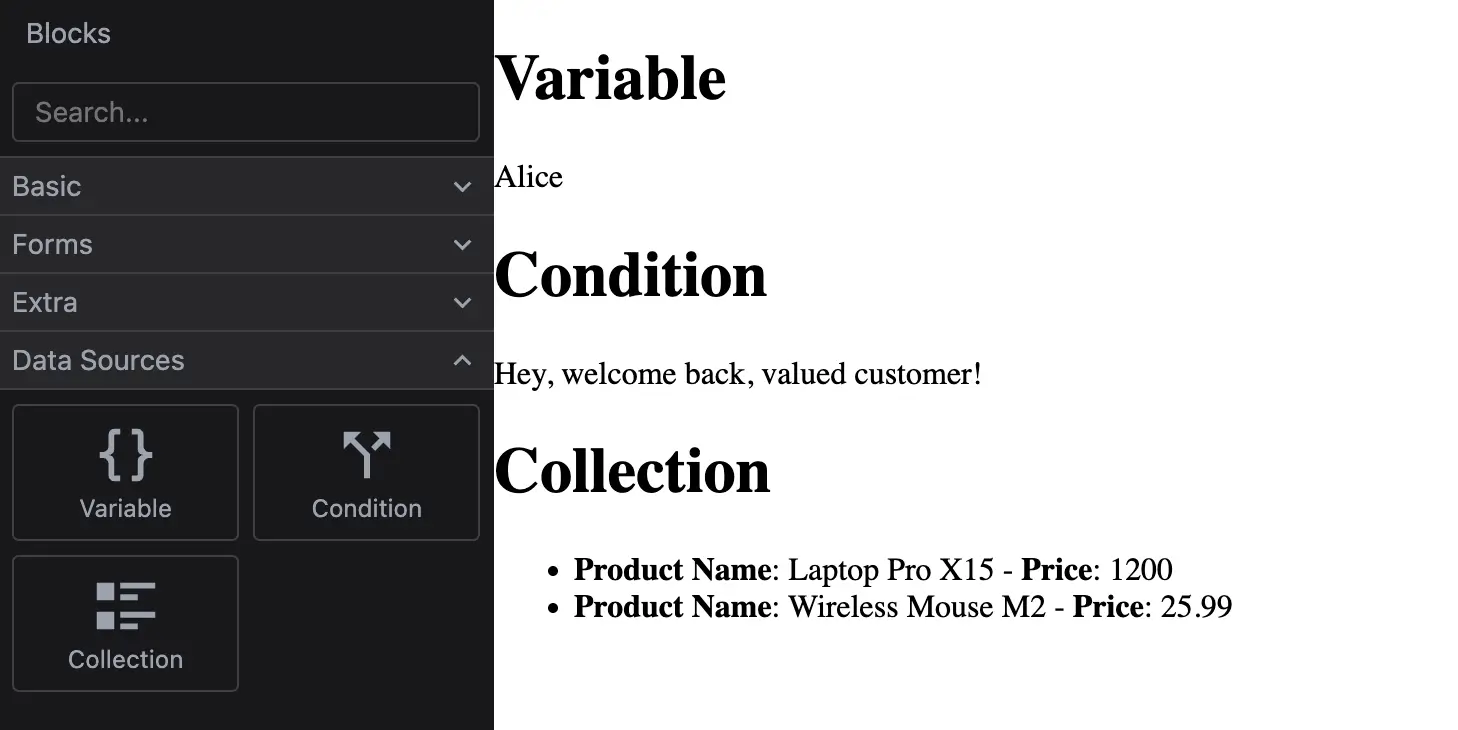
Data Source components are built into the Studio SDK, and you can use them in your projects without any additional setup. To make the most of this feature, you'll typically want to expose the built-in Data Source blocks and provide some initial data for users to work with.
- React
- JS
- 🍇 Demo
import StudioEditor from '@grapesjs/studio-sdk/react';
import '@grapesjs/studio-sdk/style';

// ...
<StudioEditor
  options={{
    // ...
    dataSources: {
      blocks: true, // This enables the Data Source specific blocks
      globalData: { // Provide default globalData for the project
        user: { firstName: 'Alice', isCustomer: true },
        products: [
          { name: 'Laptop Pro X15', price: 1200.0 },
          { name: 'Wireless Mouse M2', price: 25.99 }
        ]
      },
    },
    project: {
      default: {
        pages: [
          {
            name: 'Data Sources demo',
            component: `
              <h1>Variable</h1>
              <data-variable data-gjs-data-resolver='{"path": "globalData.user.data.firstName", "defaultValue": "Guest"}'></data-variable>

              <h1>Condition</h1>
              <div> Hey,
                <data-condition data-gjs-data-resolver='{"condition": {"logicalOperator": "and", "statements": [{"left": { "type":"data-variable", "path":"globalData.user.data.isCustomer" }, "operator": "equals", "right": true}] }}'>
                  <data-condition-true-content>welcome back, valued customer!</data-condition-true-content>
                  <data-condition-false-content>please register to see more!</data-condition-false-content>
                </data-condition>
              </div>

              <h1>Collection</h1>
              <ul data-gjs-type="data-collection"
                data-gjs-data-resolver='{"collectionId": "myCollectionId", "dataSource": {"type":"data-variable", "path":"globalData.products.data" } }'
              >
                <li data-gjs-type="data-collection-item">
                  <b>Product Name</b>: <data-variable data-gjs-data-resolver='{"collectionId": "myCollectionId", "variableType": "currentItem", "path": "name" }'></data-variable>
                  - <b>Price</b>: <data-variable data-gjs-data-resolver='{"collectionId": "myCollectionId", "variableType": "currentItem", "path": "price" }'></data-variable>
                </li>
              </ul>
            `
          },
        ]

    },
    },
    // Custom editor layout for demo purpose
    layout: {
      default: {
        type: 'row',
        style: { height: '100%' },
        children: [
          {
            type: 'panelBlocks',
            header: { label: 'Blocks', collapsible: false, style: { width: '300px' } },
            symbols: false,
          },
          { type: 'canvas' }
        ]
      }
    },
  }}
/>
import createStudioEditor from '@grapesjs/studio-sdk';
import '@grapesjs/studio-sdk/style';

// ...
createStudioEditor({
  // ...
  dataSources: {
    blocks: true, // This enables the Data Source specific blocks
    globalData: { // Provide default globalData for the project
      user: { firstName: 'Alice', isCustomer: true },
      products: [
        { name: 'Laptop Pro X15', price: 1200.0 },
        { name: 'Wireless Mouse M2', price: 25.99 }
      ]
    },
  },
  project: {
    default: {
      pages: [
        {
          name: 'Data Sources demo',
          component: `
            <h1>Variable</h1>
            <data-variable data-gjs-data-resolver='{"path": "globalData.user.data.firstName", "defaultValue": "Guest"}'></data-variable>

            <h1>Condition</h1>
            <div> Hey,
              <data-condition data-gjs-data-resolver='{"condition": {"logicalOperator": "and", "statements": [{"left": { "type":"data-variable", "path":"globalData.user.data.isCustomer" }, "operator": "equals", "right": true}] }}'>
                <data-condition-true-content>welcome back, valued customer!</data-condition-true-content>
                <data-condition-false-content>please register to see more!</data-condition-false-content>
              </data-condition>
            </div>

            <h1>Collection</h1>
            <ul data-gjs-type="data-collection"
              data-gjs-data-resolver='{"collectionId": "myCollectionId", "dataSource": {"type":"data-variable", "path":"globalData.products.data" } }'
            >
              <li data-gjs-type="data-collection-item">
                <b>Product Name</b>: <data-variable data-gjs-data-resolver='{"collectionId": "myCollectionId", "variableType": "currentItem", "path": "name" }'></data-variable>
                - <b>Price</b>: <data-variable data-gjs-data-resolver='{"collectionId": "myCollectionId", "variableType": "currentItem", "path": "price" }'></data-variable>
              </li>
            </ul>
          `
        },
      ]

  },
  },
  // Custom editor layout for demo purpose
  layout: {
    default: {
      type: 'row',
      style: { height: '100%' },
      children: [
        {
          type: 'panelBlocks',
          header: { label: 'Blocks', collapsible: false, style: { width: '300px' } },
          symbols: false,
        },
        { type: 'canvas' }
      ]
    }
  },
})
Data Components
For a better understanding of this section, we recommend checking out the Components section first.
Studio SDK includes a set of built-in data components, each supporting its own dataResolver options. These components are the foundation for building data-driven UIs within the editor. They can also be easily imported from existing HTML, making it simple to turn static designs into dynamic templates.
data-variable: Renders a single data point.
{
  type: "data-variable",
  dataResolver: {
    path: "DATA_SOURCE_ID.RECORD_ID.PROPERTY_NAME", // Path to the data
    defaultValue: "Default value" // Fallback value
  }
}
The path points to the data field. If the path is invalid or the value is undefined, defaultValue is used.
data-condition: For conditional rendering.
{
  type: "data-condition",
  dataResolver: {
    condition: {
     logicalOperator: "and",
      statements: [{
        left: { type: "data-variable", path: "VARIABLE_PATH" },
        operator: "equals",
        right: true
      }]
    }
  },
  components: [{
      type: "data-condition-true-content",
      components: "welcome back, valued customer!",
    },{
      type: "data-condition-false-content",
      components: "please register to see more!"
  }],
}
The logicalOperator combines multiple statements. Each statement evaluates a condition using left (data path or direct value), operator, and right (data path or direct value).
data-collection: For rendering arrays of data
{
  type: 'data-collection',
  dataResolver: {
    collectionId: 'myCollectionId',
    dataSource: { type: 'data-variable', path: 'VARIABLE_PATH' }
  },
  components: {
    type: 'data-collection-item',
    components: [
      {
        type: 'data-variable',
        dataResolver: {
          collectionId: 'myCollectionId',
          variableType: 'currentItem',
          path: 'name',
        }
      },
    ]
  }
}
The dataSource.path must point to an array. The data-collection-item component (defined separately or inline) serves as the template for each item, within which you can access the current item's properties.
Programmatic Usage
In the initial example, we saw how dataSources.globalData can be used to provide default data to the editor. This is a great way to kickstart your project, but you can also manage data sources programmatically via GrapesJS DataSource APIs, for a more advanced use cases.
Data Sources are stored in the project JSON. If you try adding a new data source while the editor is still loading the project, it will be overwritten by the JSON data. Make sure the editor is fully initialized before managing data sources programmatically.
// Example of a plugin
editor => {
  editor.onReady(() => {
    // The editor has finished loading the project data
    editor.DataSources.add({
      /* your data source configuration */
    });
  });
};
After initializing the editor, you can use the following API to create, update, or remove data sources:
// Access the DataSources module
const dsm = editor.DataSources;

// Add a new data source.
const ds = dsm.add({
  id: 'my_data_source_id',
  skipFromStorage: true, // Skip storing the data source in the JSON (optional).
  records: [
    { id: 'id1', name: 'value1' },
    { id: 'id2', name: 'value2' }
  ]
});

// Get the data source by ID.
const ds = dsm.get('my_data_source_id');

// Get the data source records.
const dsRecords = ds.getRecords();

// Update records.
ds.setRecords([
  { id: 'id1', name: 'value1 UP' },
  { id: 'id2', name: 'value2 UP' }
]);

// Update single record.
const dsRecord = ds.getRecord('id1');
dsRecord.set({ name: 'value1-2' });

// Get value by path.
const result = dsm.getValue('my_data_source_id.id1.name');

// Remove data source by ID.
dsm.remove('my_data_source_id');
I18n
All user-facing labels and default text within the dataSources UI and components are fully internationalizable using the standard GrapesJS I18n module.
You can provide translations by defining the appropriate keys in your editor's I18n configuration, as listed below.
- React
- JS
import StudioEditor from '@grapesjs/studio-sdk/react';
import '@grapesjs/studio-sdk/style';

// ...
<StudioEditor
  options={{
    // ...
    i18n: {
      locales: {
        en: {
          dataSources: {
            confirm: "Confirm",
            clearDataValue: "Clear data value",
            connectDataValue: "Connect data value",
            variable: "Variable",
            defaultValue: "Default value",
            variablePath: "Variable path",
            selectVariablePath: "Select variable path",
            openPathExplorer: "Open path explorer",
            closePathExplorer: "Close path explorer",
            toggleResolvedPath: "Toggle resolved path",
            items: "{length} item/s",
            properties: "{length} propertie/s",
            editVariable: "Edit variable",
            editCondition: "Edit condition",
            editCollection: "Edit collection",
            condition: "Condition",
            conditionTrue: "True condition",
            conditionFalse: "False condition",
            conditionAnd: "AND",
            conditionOr: "OR",
            conditionElse: "Else",
            addCondition: "Add condition",
            deleteCondition: "Delete condition",
            operator: "Operator",
            leftValue: "Left value",
            rightValue: "Right value",
            ifTrue: "Value if true",
            ifFalse: "Value if false",
            valueTrue: "True",
            valueFalse: "False",
            collection: "Collection",
            collectionItem: "Collection item",
            collectionId: "Collection ID",
            collectionStartIndex: "Start index",
            collectionEndIndex: "End index",
            collectionUpToEndIndex: "All",
            collections: {
              __rootData: "Page data"
            },
            variableTypes: {
              currentItem: "Current item",
              prevItem: "Previous item",
              nextItem: "Next item"
            },
            operators: {
              "=": "= (Equals)",
              "!=": "!= (Not equals)",
              ">": "> (Greater than)",
              ">=": ">= (Greater than or equals)",
              "<": "< (Less than)",
              "<=": "<= (Less than or equals)",
              contains: "Contains",
              startsWith: "Starts with",
              endsWith: "Ends with",
              matchesRegex: "Matches regex",
              equalsIgnoreCase: "Equals (ignore case)",
              trimEquals: "Trimmed equals",
              and: "AND",
              or: "OR",
              xor: "XOR",
              equals: "Equals",
              isDefined: "Is defined",
              isNull: "Is null",
              isUndefined: "Is undefined",
              isTruthy: "Is truthy",
              isFalsy: "Is falsy",
              isDefaultValue: "Is default value",
              isArray: "Is array",
              isObject: "Is object",
              isString: "Is string",
              isNumber: "Is number",
              isBoolean: "Is boolean"
            }
          },
        }
      }
    },

  }}
/>
import createStudioEditor from '@grapesjs/studio-sdk';
import '@grapesjs/studio-sdk/style';

// ...
createStudioEditor({
  // ...
  i18n: {
    locales: {
      en: {
        dataSources: {
          confirm: "Confirm",
          clearDataValue: "Clear data value",
          connectDataValue: "Connect data value",
          variable: "Variable",
          defaultValue: "Default value",
          variablePath: "Variable path",
          selectVariablePath: "Select variable path",
          openPathExplorer: "Open path explorer",
          closePathExplorer: "Close path explorer",
          toggleResolvedPath: "Toggle resolved path",
          items: "{length} item/s",
          properties: "{length} propertie/s",
          editVariable: "Edit variable",
          editCondition: "Edit condition",
          editCollection: "Edit collection",
          condition: "Condition",
          conditionTrue: "True condition",
          conditionFalse: "False condition",
          conditionAnd: "AND",
          conditionOr: "OR",
          conditionElse: "Else",
          addCondition: "Add condition",
          deleteCondition: "Delete condition",
          operator: "Operator",
          leftValue: "Left value",
          rightValue: "Right value",
          ifTrue: "Value if true",
          ifFalse: "Value if false",
          valueTrue: "True",
          valueFalse: "False",
          collection: "Collection",
          collectionItem: "Collection item",
          collectionId: "Collection ID",
          collectionStartIndex: "Start index",
          collectionEndIndex: "End index",
          collectionUpToEndIndex: "All",
          collections: {
            __rootData: "Page data"
          },
          variableTypes: {
            currentItem: "Current item",
            prevItem: "Previous item",
            nextItem: "Next item"
          },
          operators: {
            "=": "= (Equals)",
            "!=": "!= (Not equals)",
            ">": "> (Greater than)",
            ">=": ">= (Greater than or equals)",
            "<": "< (Less than)",
            "<=": "<= (Less than or equals)",
            contains: "Contains",
            startsWith: "Starts with",
            endsWith: "Ends with",
            matchesRegex: "Matches regex",
            equalsIgnoreCase: "Equals (ignore case)",
            trimEquals: "Trimmed equals",
            and: "AND",
            or: "OR",
            xor: "XOR",
            equals: "Equals",
            isDefined: "Is defined",
            isNull: "Is null",
            isUndefined: "Is undefined",
            isTruthy: "Is truthy",
            isFalsy: "Is falsy",
            isDefaultValue: "Is default value",
            isArray: "Is array",
            isObject: "Is object",
            isString: "Is string",
            isNumber: "Is number",
            isBoolean: "Is boolean"
          }
        },
      }
    }
  },

})
Template Engines
Studio allows integration with custom template engines by providing an importer and exporter. This makes it possible to map your template engine's syntax (e.g. Handlebars, EJS) to Studio's data components and vice versa.
See Template Engines page for details on how to set up the importer and exporter for your preferred syntax.
Commands
Studio SDK provides also commands to interact with dataSources programmatically.
Toggle Data Sources Preview
Toggles the editor's canvas view mode. This command switches between displaying resolved data values (preview mode) and showing placeholders or data binding indicators (edit mode). This helps visualize live data or identify data-bound elements for editing.
const newState = editor.runCommand(StudioCommands.toggleStateDataSource);
if (newState.showPlaceholder) {
  console.log('Now showing placeholders for data sources.');
} else {
  console.log('Now showing resolved data values.');
}
Get Data Sources State
Retrieves the current data source state in the Studio editor (i.e., whether placeholders or resolved values are being displayed).
const currentState = editor.runCommand(StudioCommands.getStateDataSource);
console.log('Current state', currentState);
Example
- React
- JS
- 🍇 Demo
import StudioEditor from '@grapesjs/studio-sdk/react';
import '@grapesjs/studio-sdk/style';

// ...
<StudioEditor
  options={{
    // ...
    layout: {
      default: {
        type: 'row',
        style: { height: '100%' },
        children: [
          { type: 'sidebarLeft' },
          {
            type: 'canvasSidebarTop',
            sidebarTop: {
              leftContainer: {
                buttons: ({ items }) => [
                  ...items,
                  {
                    id: 'toggle-datasources-preview',
                    title: 'Toggle Data Sources',
                    icon: 'databaseOutlineOn',
                    onClick: ({ editor }) => {
                      editor.runCommand('studio:toggleStateDataSource');
                    },
                    editorEvents: {
                      ['studio:toggleDataSourcesPreview']: ({ fromEvent, setState }) => {
                        setState({ active: fromEvent.showPlaceholder });
                      }
                    }
                  }
                ]
              }
            }
          },
          { type: 'sidebarRight' }
        ]
      }
    },
    dataSources: {
      blocks: true, // This enables the Data Source specific blocks
      globalData: { // Provide default globalData for the project
        user: { firstName: 'Alice', isCustomer: true },
        products: [
          { name: 'Laptop Pro X15', price: 1200.0 },
          { name: 'Wireless Mouse M2', price: 25.99 }
        ]
      },
    },
    project: {
      default: {
        pages: [
          {
            name: 'Data Sources demo',
            component: `
              <h1>Variable</h1>
              <data-variable data-gjs-data-resolver='{"path": "globalData.user.data.firstName", "defaultValue": "Guest"}'></data-variable>

              <h1>Condition</h1>
              <div> Hey,
                <data-condition data-gjs-data-resolver='{"condition": {"logicalOperator": "and", "statements": [{"left": { "type":"data-variable", "path":"globalData.user.data.isCustomer" }, "operator": "equals", "right": true}] }}'>
                  <data-condition-true-content>welcome back, valued customer!</data-condition-true-content>
                  <data-condition-false-content>please register to see more!</data-condition-false-content>
                </data-condition>
              </div>

              <h1>Collection</h1>
              <ul data-gjs-type="data-collection"
                data-gjs-data-resolver='{"collectionId": "myCollectionId", "dataSource": {"type":"data-variable", "path":"globalData.products.data" } }'
              >
                <li data-gjs-type="data-collection-item">
                  <b>Product Name</b>: <data-variable data-gjs-data-resolver='{"collectionId": "myCollectionId", "variableType": "currentItem", "path": "name" }'></data-variable>
                  - <b>Price</b>: <data-variable data-gjs-data-resolver='{"collectionId": "myCollectionId", "variableType": "currentItem", "path": "price" }'></data-variable>
                </li>
              </ul>
            `
          },
        ]

    },
    },
  }}
/>
import createStudioEditor from '@grapesjs/studio-sdk';
import '@grapesjs/studio-sdk/style';

// ...
createStudioEditor({
  // ...
  layout: {
    default: {
      type: 'row',
      style: { height: '100%' },
      children: [
        { type: 'sidebarLeft' },
        {
          type: 'canvasSidebarTop',
          sidebarTop: {
            leftContainer: {
              buttons: ({ items }) => [
                ...items,
                {
                  id: 'toggle-datasources-preview',
                  title: 'Toggle Data Sources',
                  icon: 'databaseOutlineOn',
                  onClick: ({ editor }) => {
                    editor.runCommand('studio:toggleStateDataSource');
                  },
                  editorEvents: {
                    ['studio:toggleDataSourcesPreview']: ({ fromEvent, setState }) => {
                      setState({ active: fromEvent.showPlaceholder });
                    }
                  }
                }
              ]
            }
          }
        },
        { type: 'sidebarRight' }
      ]
    }
  },
  dataSources: {
    blocks: true, // This enables the Data Source specific blocks
    globalData: { // Provide default globalData for the project
      user: { firstName: 'Alice', isCustomer: true },
      products: [
        { name: 'Laptop Pro X15', price: 1200.0 },
        { name: 'Wireless Mouse M2', price: 25.99 }
      ]
    },
  },
  project: {
    default: {
      pages: [
        {
          name: 'Data Sources demo',
          component: `
            <h1>Variable</h1>
            <data-variable data-gjs-data-resolver='{"path": "globalData.user.data.firstName", "defaultValue": "Guest"}'></data-variable>

            <h1>Condition</h1>
            <div> Hey,
              <data-condition data-gjs-data-resolver='{"condition": {"logicalOperator": "and", "statements": [{"left": { "type":"data-variable", "path":"globalData.user.data.isCustomer" }, "operator": "equals", "right": true}] }}'>
                <data-condition-true-content>welcome back, valued customer!</data-condition-true-content>
                <data-condition-false-content>please register to see more!</data-condition-false-content>
              </data-condition>
            </div>

            <h1>Collection</h1>
            <ul data-gjs-type="data-collection"
              data-gjs-data-resolver='{"collectionId": "myCollectionId", "dataSource": {"type":"data-variable", "path":"globalData.products.data" } }'
            >
              <li data-gjs-type="data-collection-item">
                <b>Product Name</b>: <data-variable data-gjs-data-resolver='{"collectionId": "myCollectionId", "variableType": "currentItem", "path": "name" }'></data-variable>
                - <b>Price</b>: <data-variable data-gjs-data-resolver='{"collectionId": "myCollectionId", "variableType": "currentItem", "path": "price" }'></data-variable>
              </li>
            </ul>
          `
        },
      ]

  },
  },
})