Assets
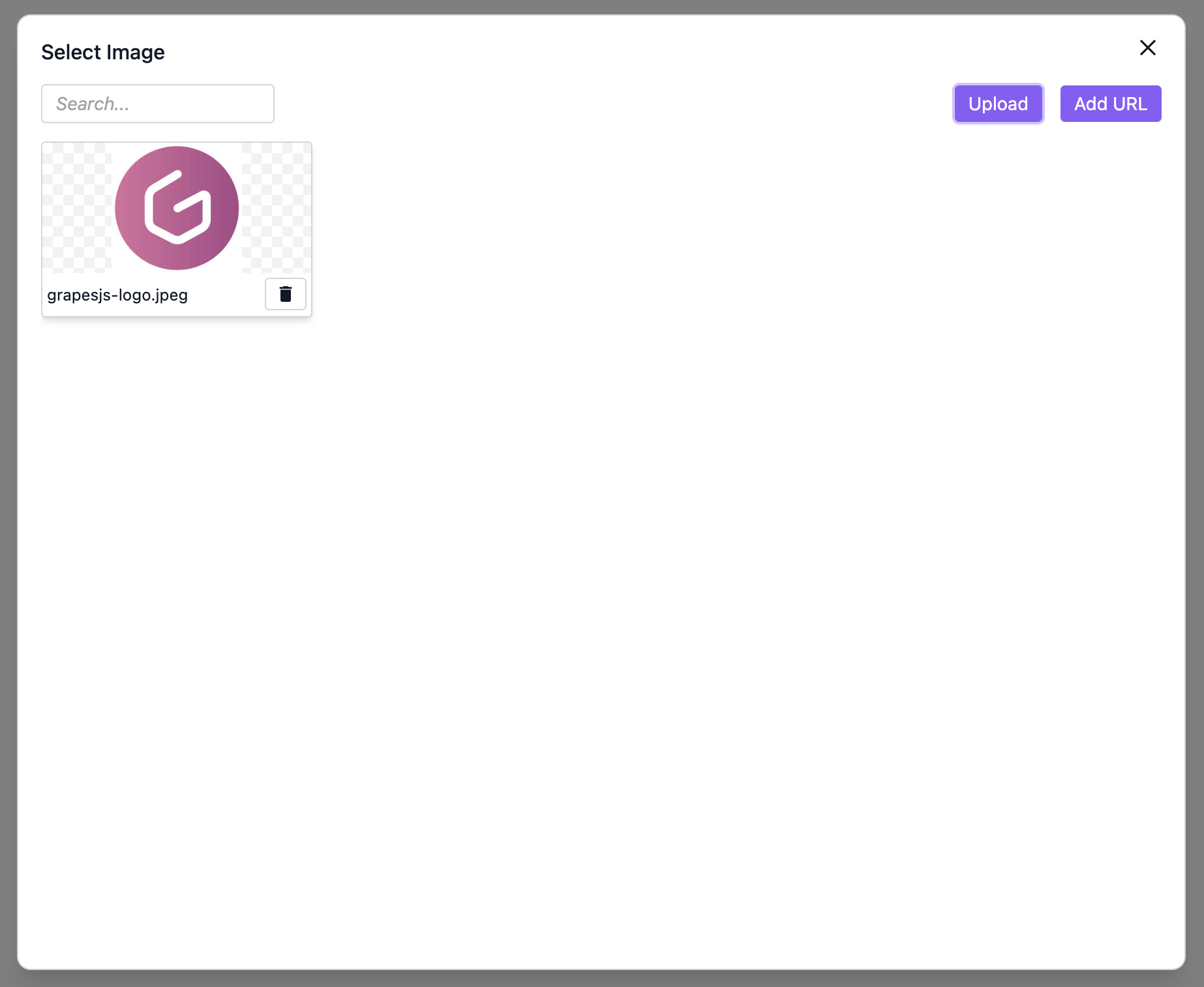
With Studio SDK, end-users can add images, fonts, videos and pdf files to their projects. In this page we'll see how to manage media and resources in your project, including uploading files and configuring storage settings. You can also integrate external services using Asset Providers, allowing you to load custom asset types such as images, videos, and documents.
Table of Contents
Asset Storage
You can configure how to store these assets, so they can be used safely in the published product.
This is controlled by the assets option of the SDK.
You can either use our cloud storage, or use a custom storage method of your own.
Always configure one of these, otherwise assets will be added as data urls, resulting in heavy html exports and potentially slower load times.
Cloud Storage
We provide an easy way to upload assets for your users.
To use this, set assets.storageType to cloud, and add a unique id for each of your projects and end-users.
- React
- JS
import StudioEditor from '@grapesjs/studio-sdk/react';
import '@grapesjs/studio-sdk/style';

// ...
<StudioEditor
  options={{
    licenseKey: "YOUR_LICENSE_KEY",
    assets: {
      storageType: "cloud"
    },
    project: {
      id: "UNIQUE_PROJECT_ID"
    },
    identity: {
      id: "UNIQUE_END_USER_ID"
    }
  }}
/>
import createStudioEditor from '@grapesjs/studio-sdk';
import '@grapesjs/studio-sdk/style';

// ...
createStudioEditor({
  licenseKey: "YOUR_LICENSE_KEY",
  assets: {
    storageType: "cloud"
  },
  project: {
    id: "UNIQUE_PROJECT_ID"
  },
  identity: {
    id: "UNIQUE_END_USER_ID"
  }
})
Avoid sensitive data in these identifiers, like emails, or phone numbers.
These project and identity ids are mandatory. We use them for allowing end-users to reuse their assets across different projects.
Custom Storage
If you want to handle asset storage on your own, set assets.storageType to self and specify assets.onUpload and assets.onDelete callbacks to indicate how to upload and delete assets with your storage.
- React
- JS
- 🍇 Demo
import StudioEditor from '@grapesjs/studio-sdk/react';
import '@grapesjs/studio-sdk/style';

const myUploadAssetsLogic = async (files) => {
  await waitAndFailRandomly('Testing when upload assets failed');
  const mockUploadedFiles = files.map(file => ({ file, url: URL.createObjectURL(file) }));
  console.log('Assets to upload to the self-hosted storage', mockUploadedFiles);
  return mockUploadedFiles;
}
const myDeleteAssetsLogic = async ({ assets }) => {
  await waitAndFailRandomly('Testing when delete assets failed');
  console.log('Assets to delete from the self-hosted storage', assets.map(asset => asset.getSrc()));
}
const waitAndFailRandomly = async (str) => {
  await new Promise(res => setTimeout(res, 1000)); // fake delay
  if (Math.random() >= 0.7) throw new Error(str);
}

// ...
<StudioEditor
  options={{
    // ...
    assets: {
      storageType: 'self',
      // this is an example, you can do whatever you want in these callbacks as long as you return the same arrays.
      onUpload: async ({ files, editor }) => {
        // TODO: implement myUploadAssetsLogic to upload files
        const results = await myUploadAssetsLogic(files);
        // return an array with the uploaded assets
        return results.map(({ file, url }) => ({
          id: url,
          src: url,
          name: file.name,
          mimeType: file.type,
          size: file.size
        }));
      },
      onDelete: async ({ assets, editor }) => {
        // TODO: implement myDeleteAssetsLogic to delete assets
        await myDeleteAssetsLogic({ assets });
        // No need to return anything, just let the promise resolve without errors
      }
    },
    project: {
      default: {
        // project assets
        assets: Array(5).fill(0).map((_, i) => ({
          name: 'Project image ' + i,
          src: `https://picsum.photos/seed/from-project-${i}/300/300`
        })),
        pages: [
          { name: 'Home', component: '<h1>Double click the image to open the Asset Manager</h1><img src="https://picsum.photos/seed/x/300/300"/>'},
        ]
      }
    },
  }}
/>
import createStudioEditor from '@grapesjs/studio-sdk';
import '@grapesjs/studio-sdk/style';

const myUploadAssetsLogic = async (files) => {
  await waitAndFailRandomly('Testing when upload assets failed');
  const mockUploadedFiles = files.map(file => ({ file, url: URL.createObjectURL(file) }));
  console.log('Assets to upload to the self-hosted storage', mockUploadedFiles);
  return mockUploadedFiles;
}
const myDeleteAssetsLogic = async ({ assets }) => {
  await waitAndFailRandomly('Testing when delete assets failed');
  console.log('Assets to delete from the self-hosted storage', assets.map(asset => asset.getSrc()));
}
const waitAndFailRandomly = async (str) => {
  await new Promise(res => setTimeout(res, 1000)); // fake delay
  if (Math.random() >= 0.7) throw new Error(str);
}

// ...
createStudioEditor({
  // ...
  assets: {
    storageType: 'self',
    // this is an example, you can do whatever you want in these callbacks as long as you return the same arrays.
    onUpload: async ({ files, editor }) => {
      // TODO: implement myUploadAssetsLogic to upload files
      const results = await myUploadAssetsLogic(files);
      // return an array with the uploaded assets
      return results.map(({ file, url }) => ({
        id: url,
        src: url,
        name: file.name,
        mimeType: file.type,
        size: file.size
      }));
    },
    onDelete: async ({ assets, editor }) => {
      // TODO: implement myDeleteAssetsLogic to delete assets
      await myDeleteAssetsLogic({ assets });
      // No need to return anything, just let the promise resolve without errors
    }
  },
  project: {
    default: {
      // project assets
      assets: Array(5).fill(0).map((_, i) => ({
        name: 'Project image ' + i,
        src: `https://picsum.photos/seed/from-project-${i}/300/300`
      })),
      pages: [
        { name: 'Home', component: '<h1>Double click the image to open the Asset Manager</h1><img src="https://picsum.photos/seed/x/300/300"/>'},
      ]
    }
  },
})
Custom load
By default, uploaded asset references (e.g. { src: 'https://....' }) are stored directly inside the Project JSON.
If you prefer to load the list of assets directly from your storage, you can use a custom assets.onLoad callback.
When this callback is used, the assets defined in the JSON will be ignored.
- React
- JS
- 🍇 Demo
import StudioEditor from '@grapesjs/studio-sdk/react';
import '@grapesjs/studio-sdk/style';

// ...
<StudioEditor
  options={{
    // ...
    assets: {
      storageType: 'self',
      onUpload: async ({ files, editor }) => {
        const results = await myUploadAssetsLogic(files);
        return results.map(({ file, url }) => ({ id: url, src: url, name: file.name, mimeType: file.type, size: file.size }));
      },
      onDelete: async ({ assets, editor }) => {
        await myDeleteAssetsLogic({ assets });
      },
      onLoad: async () => {
        // Fetch and return assets from your storage backend
        return Array(10).fill(0).map((_, i) => ({
          name: 'Image from storage ' + i,
          type: 'image',
          src: `https://picsum.photos/seed/from-storage-${i}/300/300`
        }))
      },
    },
    project: {
      default: {
        // These assets will be ignored
        assets: Array(5).fill(0).map((_, i) => ({ name: 'Project image ' + i, src: `https://picsum.photos/seed/from-project-${i}/300/300` })),
        pages: [
          { name: 'Home', component: '<h1>Double click the image to open the Asset Manager</h1><img src="https://picsum.photos/seed/x/300/300"/>'},
        ],
      },
    },
  }}
/>
import createStudioEditor from '@grapesjs/studio-sdk';
import '@grapesjs/studio-sdk/style';

// ...
createStudioEditor({
  // ...
  assets: {
    storageType: 'self',
    onUpload: async ({ files, editor }) => {
      const results = await myUploadAssetsLogic(files);
      return results.map(({ file, url }) => ({ id: url, src: url, name: file.name, mimeType: file.type, size: file.size }));
    },
    onDelete: async ({ assets, editor }) => {
      await myDeleteAssetsLogic({ assets });
    },
    onLoad: async () => {
      // Fetch and return assets from your storage backend
      return Array(10).fill(0).map((_, i) => ({
        name: 'Image from storage ' + i,
        type: 'image',
        src: `https://picsum.photos/seed/from-storage-${i}/300/300`
      }))
    },
  },
  project: {
    default: {
      // These assets will be ignored
      assets: Array(5).fill(0).map((_, i) => ({ name: 'Project image ' + i, src: `https://picsum.photos/seed/from-project-${i}/300/300` })),
      pages: [
        { name: 'Home', component: '<h1>Double click the image to open the Asset Manager</h1><img src="https://picsum.photos/seed/x/300/300"/>'},
      ],
    },
  },
})
Custom Asset Manager
If your product requires a custom asset manager, you can opt out of the default one by leveraging GrapesJS’s native interface and providing your own callbacks.
To be compatible with the editor, your custom asset manager should handle three key actions:
- How to open the asset manager
- How to close it
- How to select and return an asset
- React
- JS
- 🍇 Demo
import StudioEditor from '@grapesjs/studio-sdk/react';
import '@grapesjs/studio-sdk/style';

// ...
<StudioEditor
  options={{
    // ...
    gjsOptions: {
      storageManager: false, // Disabled for demo purposes
      assetManager: {
        custom: {
          // Tell the editor how to open your custom Asset Manager
          open(props) {
            // Example with a custom dialog (pseudo-code)
            if (typeof myCustomAssetManagerDialog !== 'undefined') {
              myCustomAssetManagerDialog.open({
                // Indicate how to select the asset
                onSelect(imageUrl) { props.select({ src: imageUrl }) },
                // Propagate the close action back to the editor
                onClose() { props.close(); }
              });
            } else {
              // Fallback demo using native file picker
              const input = document.createElement('input');
              input.type = 'file';
              input.accept = 'image/*';
              input.onchange = (event) => {
                const file = event.target.files[0];
                if (file) {
                  const reader = new FileReader();
                  reader.onload = () => {
                    props.select({ src: reader.result });
                    props.close();
                  };
                  reader.readAsDataURL(file);
                } else {
                  props.close();
                }
              };
              input.oncancel = () => props.close();
              input.click();
            }
          },
          // Tell the editor how to close your custom Asset Manager
          close(props) {
            if (typeof myCustomAssetManagerDialog !== 'undefined') {
              myCustomAssetManagerDialog.close();
            } else {
              alert('Custom Asset Manager closed!');
            }
          }
        }
      }
    },
    project: {
      default: {
        pages: [
          { name: 'Home', component: '<h1>Double click the image to open the Asset Manager</h1><img src="https://picsum.photos/seed/x/300/300"/>'},
        ]
      }
    },
  }}
/>
import createStudioEditor from '@grapesjs/studio-sdk';
import '@grapesjs/studio-sdk/style';

// ...
createStudioEditor({
  // ...
  gjsOptions: {
    storageManager: false, // Disabled for demo purposes
    assetManager: {
      custom: {
        // Tell the editor how to open your custom Asset Manager
        open(props) {
          // Example with a custom dialog (pseudo-code)
          if (typeof myCustomAssetManagerDialog !== 'undefined') {
            myCustomAssetManagerDialog.open({
              // Indicate how to select the asset
              onSelect(imageUrl) { props.select({ src: imageUrl }) },
              // Propagate the close action back to the editor
              onClose() { props.close(); }
            });
          } else {
            // Fallback demo using native file picker
            const input = document.createElement('input');
            input.type = 'file';
            input.accept = 'image/*';
            input.onchange = (event) => {
              const file = event.target.files[0];
              if (file) {
                const reader = new FileReader();
                reader.onload = () => {
                  props.select({ src: reader.result });
                  props.close();
                };
                reader.readAsDataURL(file);
              } else {
                props.close();
              }
            };
            input.oncancel = () => props.close();
            input.click();
          }
        },
        // Tell the editor how to close your custom Asset Manager
        close(props) {
          if (typeof myCustomAssetManagerDialog !== 'undefined') {
            myCustomAssetManagerDialog.close();
          } else {
            alert('Custom Asset Manager closed!');
          }
        }
      }
    }
  },
  project: {
    default: {
      pages: [
        { name: 'Home', component: '<h1>Double click the image to open the Asset Manager</h1><img src="https://picsum.photos/seed/x/300/300"/>'},
      ]
    }
  },
})