AI Chat
Learn how to add the AI Chat component to your Studio SDK editor.
Quick start
Install the Studio SDK plugins package
- npm
- pnpm
- yarn
npm i @grapesjs/studio-sdk-plugins
pnpm add @grapesjs/studio-sdk-plugins
yarn add @grapesjs/studio-sdk-plugins
The AI plugin provides a Layout component for the chat UI. It's up to you to decide where to place it in the editor.
The example below uses the Sidebar Buttons plugin to make the chat panel accessible from the sidebar.
import StudioEditor from '@grapesjs/studio-sdk/react';
import { layoutSidebarButtons } from '@grapesjs/studio-sdk-plugins';
import aiChat from '@grapesjs/studio-sdk-plugins/dist/aiChat';
import '@grapesjs/studio-sdk/style';

export function App() {
  return (
    <StudioEditor
      options={{
        // ...
        layout: layoutSidebarButtons.createLayoutConfig({
          sidebarButtons: ({ sidebarButtons, createSidebarButton }) => [
            ...sidebarButtons,
            createSidebarButton({
              id: 'aiChatPanel',
              tooltip: 'AI Assistant',
              icon: `<svg xmlns="http://www.w3.org/2000/svg" viewBox="0 0 24 24"> <g fill="none" stroke="currentColor" stroke-linecap="round" stroke-linejoin="round" stroke-width="2"> <path d="M12 8V4H8"/> <rect width="16" height="12" x="4" y="8" rx="2"/> <path d="M2 14h2m16 0h2m-7-1v2m-6-2v2"/> </g> </svg>`,
              layoutCommand: { header: false },
              layoutComponent: { type: 'aiChatPanel' } // <- Layout component from the AI plugin
            })
          ]
        }),
        plugins: [
          // Skip layout config since we add it manually above
          layoutSidebarButtons.init({ skipLayoutConfig: true }),
          // Add AI chat plugin
          aiChat.init({})
        ]
      }}
    />
  );
}
Now you'll be able to access the AI chat panel from the editor. To make it fully functional, configure:
- A Backend for AI response generation.
- Message persistence to store and load chat history.
Backend configuration
For the backend, you can either use the Chat Platform API or build your own.
Chat Platform API
The Chat Platform API is an ephemeral endpoint that generates AI responses without storing any user data or chat history. It relies on credits you can top up from the dashboard.
To connect from your application, generate an access token on your backend and provide it to the plugin.
Setup access token generation
- Generate an API Key from your Platform API page and store it securely on your backend (e.g.
.envfile).
GRAPES_PLATFORM_API_KEY=SECRET
- Setup your backend route to generate an access token.
// Example route `/get-token` in NextJS
import { NextResponse } from 'next/server';

export const POST = async request => {
  const response = await fetch('https://api.grapesjs.com/v1/access-tokens', {
    method: 'POST',
    headers: { Authorization: `Bearer ${process.env.GRAPES_PLATFORM_API_KEY}` }
  });
  const result = await response.json();

  return NextResponse.json(result, { status: 200 });
};
Call /access-tokens API only from your backend. Browser requests to this endpoint are intentionally blocked by CORS to prevent leaking your private key.
- Provide the access token generator function to the plugin.
<StudioEditor
  options={{
    // ...
    plugins: [
      // ...
      aiChat.init({
        // ...
        getAccessToken: async () => {
          const res = await fetch('/get-token', { method: 'POST' });
          const result = await res.json();
          return result;
        }
      })
    ]
  }}
/>
Custom Backend
For full control over AI response generation, tool customization, or different AI providers, you can build your own backend. See the backend documentation for details.
Message persistence
Use messages and onMessagesUpdate to load and persist messages on the client.
Messages follow the UIMessage interface from the ai library.
An example below uses a local storage for simplicity.
const STORAGE_KEY = 'chat-messages-ID';

async function loadMessages() {
  const stored = localStorage.getItem(STORAGE_KEY);
  return stored ? JSON.parse(stored) : [];
}

async function saveMessages(messages) {
  localStorage.setItem(STORAGE_KEY, JSON.stringify(messages));
}

export function App() {
  return (
    <StudioEditor
      options={{
        // ...
        plugins: [
          // ...
          aiChat.init({
            // ...
            // if messages are already available (eg. from your BE), you can pass them directly
            messages: uiMessages,
            // or provide a function that loads them asynchronously
            messages: async () => {
              return await loadMessages();
            },
            onMessagesUpdate: async ({ messages }) => {
              const lastMessage = messages[messages.length - 1];
              console.log('onMessagesUpdate', {
                messages,
                lastMessage,
                isUser: lastMessage?.role === 'user',
                isAssistant: lastMessage?.role === 'assistant',
                isClear: messages.length === 0
              });
              await saveMessages(messages);
            }
          })
        ]
      }}
    />
  );
}
Customization
Use the layoutComponents option to customize built-in UI components.
aiChat.init({
  layoutComponents: {
    aiChatEmptyState: () => ({
      suggestions: [
        { id: 'sugg1', label: 'Create a hero section' },
        { id: 'sugg2', label: 'Add a contact form' }
      ]
    }),
    aiChatInput: () => ({
      maxAssets: 3,
      acceptAssetType: 'image/jpeg'
    }),
    aiChatHeader: () => ({
      onClear: async ({ clear }) => {
        const confirmed = window.confirm('Delete all messages?');
        if (!confirmed) return;
        // await deleteMessagesFromBackend();
        clear();
      },
      clearButtonProps: {
        tooltip: 'Delete messages'
      }
    }),
    aiChatMessage: () => ({
      layoutAfterMessage: ({ message }) => {
        if (message.role !== 'user') return;
        return {
          type: 'custom',
          component: () => {
            const createdAt = message.metadata?.createdAt;
            return createdAt ? <div>{new Date(createdAt).toLocaleString()}</div> : null;
          }
        };
      }
    })
  }
});
Component properties
aiChatEmptyState
Show properties
| Property | Type | Description |
|---|---|---|
suggestions | array | Suggestions to show in the empty state. Example |
aiChatInput
Show properties
| Property | Type | Description |
|---|---|---|
acceptAssetType | string | Accepted file types for attachments. Default |
assetsSectionProps | object | Props forwarded to the assets section. |
attachButtonProps | object | Props forwarded to the attach button. |
contextSectionProps | object | Props forwarded to the context section (selected components indicator). |
dictateButtonProps | object | Props forwarded to the dictate button. |
layoutAfter | function | Custom layout rendered after the main input container. |
layoutBefore | function | Custom layout rendered before the main input container. |
maxAssets | number | Maximum number of assets per message. Set to 0 to disable asset attachments. Default |
onSubmit | function | Custom submit handler. When provided, the default submit is skipped. Receives the form event, a |
submitButtonProps | object | Props forwarded to the submit button. |
textareaProps | object | Props forwarded to the textarea element. |
uploadProjectAssets | function | Custom upload function for assets. If not provided, the upload from AssetManager will be used. Example |
value | string | Default value for the text input. |
aiChatHeader
Show properties
| Property | Type | Description |
|---|---|---|
clearButtonProps | object | Props forwarded to the clear button. Use |
layoutAfter | function | Custom layout rendered after the header content. |
layoutBefore | function | Custom layout rendered before the header content. |
onClear | function | Custom clear handler. Receives |
title | string | Custom title for the header. |
aiChatMessage
Show properties
| Property | Type | Description |
|---|---|---|
message* | object | Chat message to render |
isStreaming | boolean | Indicates if the message is currently streaming |
layoutAfterMessage | function | Custom layout after the message |
layoutBeforeMessage | function | Custom layout before the message |
layoutPart | function | Custom layout for message parts |
layoutPartToolDetail | function | Custom layout for tool detail parts |
layoutPartToolLabel | function | Custom layout for tool label parts |
layoutPartToolResult | function | Custom layout for tool result parts |
showSources | boolean | Render source parts (source-url/source-document) when available. Default |
I18n
These are the i18n keys you can use to customize labels in the chat UI.
{
  en: {
    aiChat: {
      header: {
        title: "AI Chat",
        clear: "Clear"
      },
      emptyState: {
        title: "AI Assistant",
        subtitle: "How can I help you build your project?",
        suggestions: {
          webHero: "Create a hero section with a headline and call-to-action",
          webFeatures: "Add a features grid with icons",
          webContact: "Create a contact form",
          webTestimonials: "Add testimonials section",
          emailHeader: "Add an email header",
          emailCta: "Add a call-to-action button",
          emailFooter: "Add an email footer with links",
          emailProduct: "Add a product showcase section"
        }
      },
      error: {
        title: "Error"
      },
      panel: {
        loadError: "Failed to load messages",
        messagesUpdate: "Error during messages update"
      },
      input: {
        placeholder: "Ask anything...",
        uploadError: "Failed to upload images",
        attach: {
          title: "Attach images",
          upload: "Upload new image",
          selectFromAssets: "Select image from Assets",
          maxAssets: "Maximum {count} assets allowed"
        },
        assets: {
          imageAlt: "Image {num}",
          pdfTitle: "PDF {num}",
          remove: "Remove"
        },
        context: {
          multiple: "{count} Components",
          clear: "Clear"
        },
        dictate: {
          start: "Dictate",
          stop: "Stop"
        }
      },
      message: {
        reasoning: "Reasoning",
        tools: {
          webSearch: "Web search",
          removeComponent: "Remove component",
          moveComponent: "Move component",
          getPageContent: "Get page content",
          listPages: "List pages",
          fetchWebsite: "Fetch website",
          generateImage: "Generate image",
          runCommand: "Run command",
          addComponentCode: "Create component",
          editComponentCode: "Edit component",
          addPageCode: "Create page",
          addProjectPageCode: "Create new project page"
        },
        tool: {
          input: "Input",
          output: "Output",
          error: "Error",
          generateImage: {
            generating: "Generating...",
            imageAlt: "Generated image {num}",
            useImage: "Use image"
          },
          fetchWebsite: {
            pending: "Fetching website {url}",
            done: "Fetched website {url}",
            missingContent: "Missing website content.",
            defaultPageName: "Imported page"
          },
          command: {
            notFound: "Command \"{id}\" not found",
            missingHandler: "Command \"{id}\" has no execute handler",
            showCode: {
              pending: "Opening code panel",
              done: "Code panel opened"
            },
            importCode: {
              pending: "Opening import panel",
              done: "Import panel opened"
            },
            preview: {
              pending: "Opening preview",
              done: "Preview opened"
            },
            publish: {
              pending: "Opening publish dialog",
              done: "Publish dialog opened"
            },
            pageSettings: {
              pending: "Opening page settings",
              done: "Page settings opened"
            }
          }
        },
        source: {
          document: "Document"
        }
      }
    }
  }
}
You can update the labels by using the editor I18n module.
plugins: [
  aiChat.init({
    // ...
  }),
  // To load after the chat plugin
  editor => {
    editor.I18n.addMessages({
      en: {
        aiChat: {
          header: { title: 'Custom title' }
        }
      }
    });
  }
];
Commands
The plugin exposes a command API for programmatic interaction with the chat.
import { ChatApi } from '@grapesjs/studio-sdk-plugins/dist/aiChat';
// ...

const chatApi = editor.runCommand('aiChat:getChatApi') as ChatApi;

// Read state (always returns current values)
chatApi.messages; // Current messages
chatApi.lastMessage; // Last message (if any)
chatApi.status; // 'ready' | 'submitted' | 'streaming' | 'error'
chatApi.error; // Current error (if any)

// Actions
chatApi.sendMessage({ text: 'Create a contact form' });
chatApi.setMessages([]); // Replace messages
chatApi.stop(); // Stop current streaming
chatApi.setError('Custom error message');
chatApi.clearError();
Layout components
Besides the main aiChatPanel, you can also use other layout components like aiChatInput and show them, for example, in component toolbars or popovers.
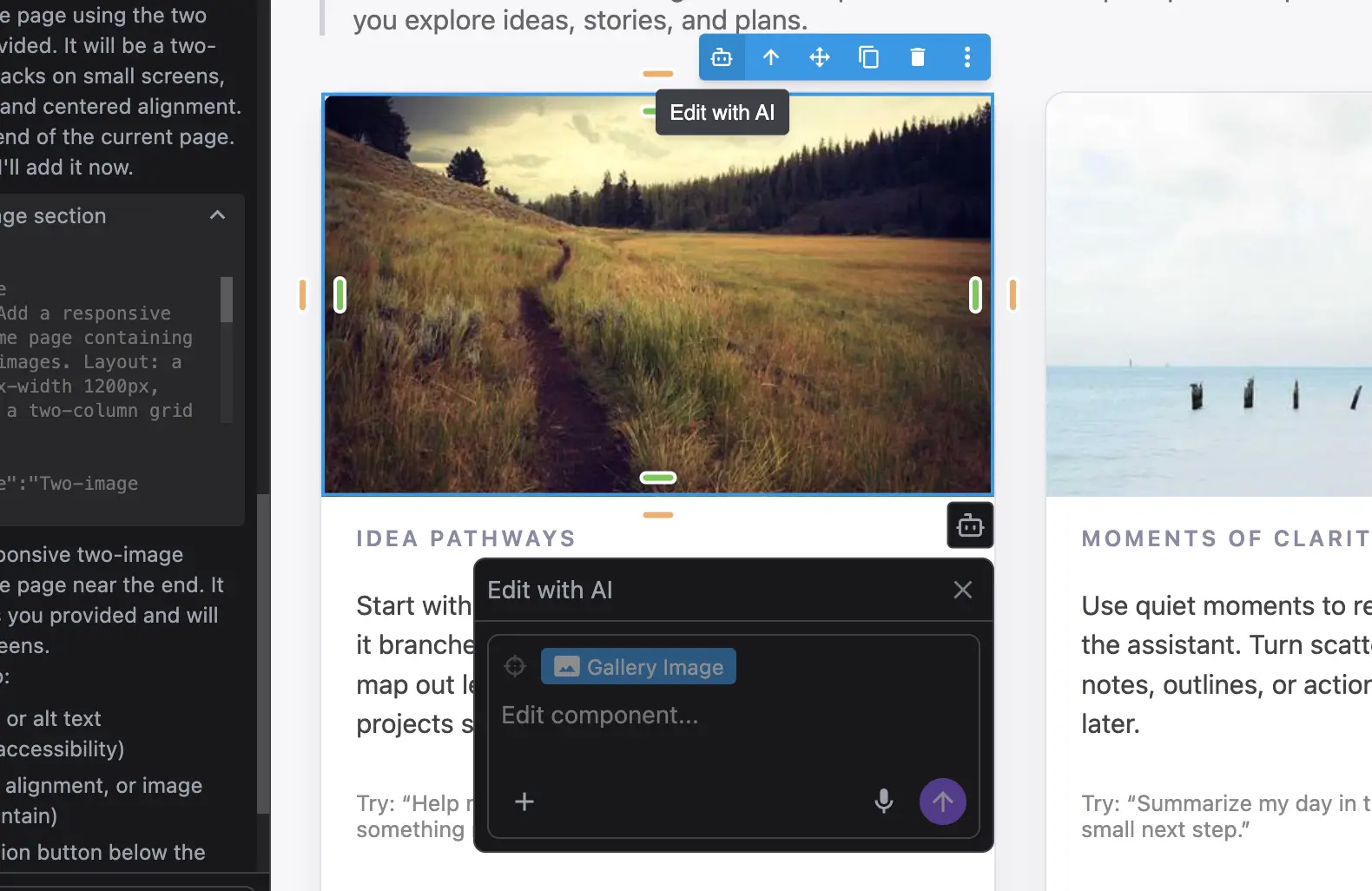
const idChatInput = 'aiInput';

const aiIcon =
  '<svg xmlns="http://www.w3.org/2000/svg" viewBox="0 0 24 24"> <g fill="none" stroke="currentColor" stroke-linecap="round" stroke-linejoin="round" stroke-width="2"> <path d="M12 8V4H8"/> <rect width="16" height="12" x="4" y="8" rx="2"/> <path d="M2 14h2m16 0h2m-7-1v2m-6-2v2"/> </g> </svg>';

const closeChatInput = (editor: Editor) => editor.runCommand(StudioCommands.layoutRemove, { id: idChatInput });

const openChatInput = (editor: Editor, target: HTMLElement) => {
  editor.runCommand(StudioCommands.layoutToggle, {
    id: idChatInput,
    header: { label: 'Edit with AI' },
    style: { borderRadius: '0.5rem', width: '300px' },
    layout: {
      type: 'aiChatInput',
      textareaProps: { autoFocus: true, placeholder: 'Edit component...' },
      contextSectionProps: { disabled: true },
      onSubmit: async ({ submit }) => {
        await submit();
        closeChatInput(editor);
      }
    },
    placer: { type: 'popover', target, options: { placement: 'bottom-end' } }
  } satisfies LayoutCommandProps);
};

export function App() {
  return (
    <StudioEditor
      options={{
        // ...
        canvas: {
          canvasSpots: ({ editor }) => {
            return {
              // Show the AI button as canvas spot on selected components.
              select: {
                slots: [
                  {
                    id: 'showAiInputBtn',
                    position: 'bottom-right',
                    layout: {
                      type: 'button',
                      variant: 'secondary',
                      size: 's',
                      icon: aiIcon,
                      style: { marginTop: 5 },
                      editorEvents: { [editor.Components.events.select]: () => closeChatInput(editor) },
                      onClick: ({ event }) => openChatInput(editor, event.currentTarget)
                    }
                  }
                ]
              }
            };
          }
        },
        components: {
          // Add an AI button to the component toolbar.
          toolbar: ({ items }) => [
            {
              id: 'aiInput',
              tooltip: 'Edit with AI',
              label: aiIcon,
              command: (editor, _, { event }) => openChatInput(editor, event.currentTarget)
            },
            ...items
          ]
        },
        plugins: [
          // ...
        ]
      }}
    />
  );
}
Plugin options
| Property | Type | Description |
|---|---|---|
licenseKey | string | The license key for the plugin. This is optional, only required if the plugin is used outside of Studio SDK. Example |
chatApi | string | Custom endpoint for the chat API Example |
tools | function | Customize or extend the default client-side tools Example |
onTool | function | Callback when a client tool call is made Example |
layoutComponents | object | Customize UI layout component props Example |
messages | Initial messages or async function to load messages Example | |
onMessagesUpdate | function | Callback when messages are updated (for persistence) Example |
body | Request body for API calls (merged with default body) Example | |
defaultTransportOptions | object | Default transport options for chat API calls. Use this to customize headers, credentials, or other transport settings. Example |
getAccessToken | function | Function to get the access token Example |
chatOptions | object | Additional chat options. Example |