Absolute Mode
Project types | web |
Plan | Startup plan |
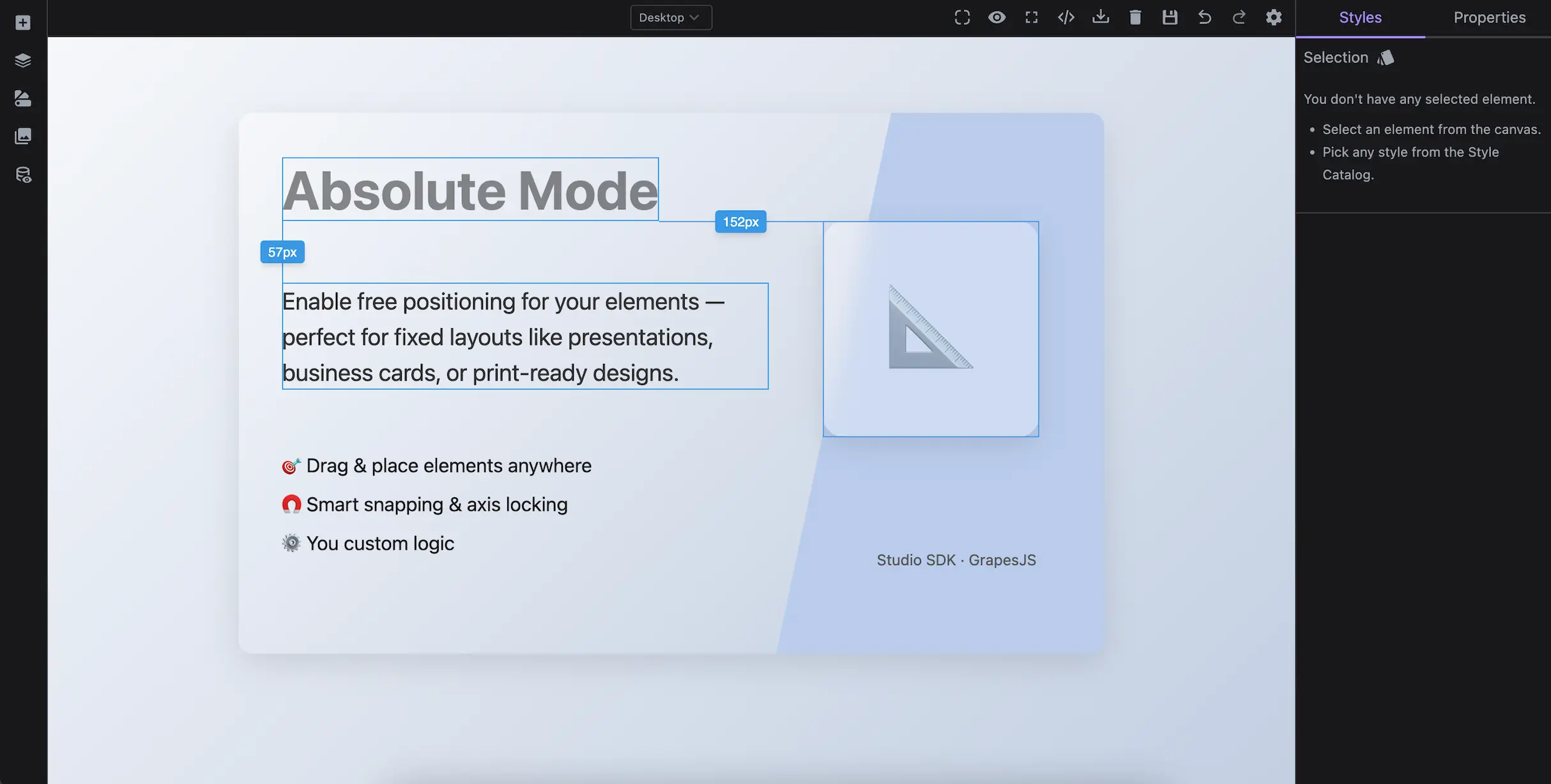
Enables free drag-and-drop positioning using absolute coordinates. This mode is ideal for fixed-layout designs like documents for print, business cards, certificates, or static prototypes where responsiveness isn't required.
While absolute positioning isn't suited for responsive web design, you can enable it conditionally (e.g. only when the element already uses position: absolute) to apply it where it makes sense.
Install the Studio SDK plugins package:
- npm
- pnpm
- yarn
- CDN
npm i @grapesjs/studio-sdk-plugins
pnpm add @grapesjs/studio-sdk-plugins
yarn add @grapesjs/studio-sdk-plugins
// It's recommended to replace the `latest` tag with the specific latest version to avoid any potential breaking changes.
// The loaded plugin is globally available via `globalThis.StudioSdkPlugins_canvasAbsoluteMode`.
"https://unpkg.com/@grapesjs/studio-sdk-plugins@latest/dist/canvasAbsoluteMode/index.umd.js"
The example below demonstrates the default global absolute mode, where all existing and newly added components are positioned using absolute coordinates.
- React
- JS
- 🍇 Demo
import StudioEditor from '@grapesjs/studio-sdk/react';
import '@grapesjs/studio-sdk/style';
import { canvasAbsoluteMode } from '@grapesjs/studio-sdk-plugins';
// ...
<StudioEditor
  options={{
      // ...
      plugins: [
        canvasAbsoluteMode
      ],
      devices: {
        default: [
          { id: 'desktop', name: 'Desktop', width: '' }
        ]
      },
      project: {
        default: {
          pages: [
            {
              name: 'Presentation',
              component: `
                <div style="position: relative; width: 800px; height: 500px; margin: 70px auto 0; background: linear-gradient(135deg, #f5f7fa, #c3cfe2); color: #1a1a1a; border-radius: 12px; box-shadow: 0 10px 30px rgba(0, 0, 0, 0.1); overflow: hidden;">
                  <div style="position: absolute; top: 0; left: 550px; width: 300px; height: 100%; background-color: #baccec; transform: skewX(-12deg)"></div>

                  <h1 style="position: absolute; top: 40px; left: 40px; font-size: 50px; margin: 0; font-weight: 700;">
                    Absolute Mode
                  </h1>

                  <p style="position: absolute; top: 135px; left: 40px; font-size: 22px; max-width: 450px; line-height: 1.5; color: #333;">
                    Enable free positioning for your elements — perfect for fixed layouts like presentations, business cards, or print-ready designs.
                  </p>

                  <ul data-gjs-type="text" style="position: absolute; top: 290px; left: 40px; font-size: 18px; line-height: 2; list-style: none; padding: 0;">
                    <li>🎯 Drag & place elements anywhere</li>
                    <li>🧲 Smart snapping & axis locking</li>
                    <li>⚙️ You custom logic</li>
                  </ul>

                  <div style="position: absolute; left: 540px; top: 100px; width: 200px; height: 200px; background: rgba(255, 255, 255, 0.3); border-radius: 20px; backdrop-filter: blur(10px); box-shadow: 0 8px 24px rgba(0,0,0,0.1); display: flex; align-items: center; justify-content: center; font-size: 80px;">
                    📐
                  </div>

                  <div style="position: absolute; top: 405px; left: 590px; font-size: 14px; color: #555;">
                    Studio SDK · GrapesJS
                  </div>
              </div>

              <style>
                body {
                  position: relative;
                  background: linear-gradient(135deg, #f5f7fa, #c3cfe2);
                  font-family: system-ui;
                  overflow: hidden;
                }
              </style>
              `,
            }
          ]
        }
      },


  }}
/>
import createStudioEditor from '@grapesjs/studio-sdk';
import '@grapesjs/studio-sdk/style';
import { canvasAbsoluteMode } from '@grapesjs/studio-sdk-plugins';
// ...
createStudioEditor({
    // ...
    plugins: [
      canvasAbsoluteMode
    ],
    devices: {
      default: [
        { id: 'desktop', name: 'Desktop', width: '' }
      ]
    },
    project: {
      default: {
        pages: [
          {
            name: 'Presentation',
            component: `
              <div style="position: relative; width: 800px; height: 500px; margin: 70px auto 0; background: linear-gradient(135deg, #f5f7fa, #c3cfe2); color: #1a1a1a; border-radius: 12px; box-shadow: 0 10px 30px rgba(0, 0, 0, 0.1); overflow: hidden;">
                <div style="position: absolute; top: 0; left: 550px; width: 300px; height: 100%; background-color: #baccec; transform: skewX(-12deg)"></div>

                <h1 style="position: absolute; top: 40px; left: 40px; font-size: 50px; margin: 0; font-weight: 700;">
                  Absolute Mode
                </h1>

                <p style="position: absolute; top: 135px; left: 40px; font-size: 22px; max-width: 450px; line-height: 1.5; color: #333;">
                  Enable free positioning for your elements — perfect for fixed layouts like presentations, business cards, or print-ready designs.
                </p>

                <ul data-gjs-type="text" style="position: absolute; top: 290px; left: 40px; font-size: 18px; line-height: 2; list-style: none; padding: 0;">
                  <li>🎯 Drag & place elements anywhere</li>
                  <li>🧲 Smart snapping & axis locking</li>
                  <li>⚙️ You custom logic</li>
                </ul>

                <div style="position: absolute; left: 540px; top: 100px; width: 200px; height: 200px; background: rgba(255, 255, 255, 0.3); border-radius: 20px; backdrop-filter: blur(10px); box-shadow: 0 8px 24px rgba(0,0,0,0.1); display: flex; align-items: center; justify-content: center; font-size: 80px;">
                  📐
                </div>

                <div style="position: absolute; top: 405px; left: 590px; font-size: 14px; color: #555;">
                  Studio SDK · GrapesJS
                </div>
            </div>

            <style>
              body {
                position: relative;
                background: linear-gradient(135deg, #f5f7fa, #c3cfe2);
                font-family: system-ui;
                overflow: hidden;
              }
            </style>
            `,
          }
        ]
      }
    },


})
Conditional Usage
You can also enable absolute mode conditionally, for example, only for elements that already have position: absolute set in their styles.
- React
- JS
- 🍇 Demo
import StudioEditor from '@grapesjs/studio-sdk/react';
import '@grapesjs/studio-sdk/style';
import { canvasAbsoluteMode } from '@grapesjs/studio-sdk-plugins';
// ...
<StudioEditor
  options={{
      // ...
      plugins: [
        canvasAbsoluteMode.init({
          globalAbsolute: false,

          // This is the default behavior when globalAbsolute is false
          enableAbsolute: ({ component }) => {
            const cmpEl = component.getEl();
            if (cmpEl && getComputedStyle(cmpEl).position === 'absolute') {
              return true;
            }
          }
        })
      ],
      project: {
        default: {
          pages: [
            {
              name: 'Demo',
              component: `
                <div style="padding: 20px; display: flex; flex-direction: column; gap: 10px; margin: 20px 0">
                  <div class="static-box">Static Box 1</div>
                  <div class="static-box">Static Box 2</div>
                  <div class="static-box">Static Box 3</div>
                </div>

                <div class="absolute-box">Absolute box</div>

                <style>
                  body {
                    font-family: system-ui;
                  }
                  .static-box, .absolute-box {
                    padding: 1rem;
                    border-radius: 8px;
                    background-color: rgba(75, 227, 165, 1);
                  }
                  .absolute-box {
                    position: absolute;
                    background-color: rgba(227, 75, 75, 1);
                    top: 250px;
                    left: 20px;
                  }
                </style>
              `,
            }
          ]
        }
      },


  }}
/>
import createStudioEditor from '@grapesjs/studio-sdk';
import '@grapesjs/studio-sdk/style';
import { canvasAbsoluteMode } from '@grapesjs/studio-sdk-plugins';
// ...
createStudioEditor({
    // ...
    plugins: [
      canvasAbsoluteMode.init({
        globalAbsolute: false,

        // This is the default behavior when globalAbsolute is false
        enableAbsolute: ({ component }) => {
          const cmpEl = component.getEl();
          if (cmpEl && getComputedStyle(cmpEl).position === 'absolute') {
            return true;
          }
        }
      })
    ],
    project: {
      default: {
        pages: [
          {
            name: 'Demo',
            component: `
              <div style="padding: 20px; display: flex; flex-direction: column; gap: 10px; margin: 20px 0">
                <div class="static-box">Static Box 1</div>
                <div class="static-box">Static Box 2</div>
                <div class="static-box">Static Box 3</div>
              </div>

              <div class="absolute-box">Absolute box</div>

              <style>
                body {
                  font-family: system-ui;
                }
                .static-box, .absolute-box {
                  padding: 1rem;
                  border-radius: 8px;
                  background-color: rgba(75, 227, 165, 1);
                }
                .absolute-box {
                  position: absolute;
                  background-color: rgba(227, 75, 75, 1);
                  top: 250px;
                  left: 20px;
                }
              </style>
            `,
          }
        ]
      }
    },


})
Plugin options
| Property | Type | Description |
|---|---|---|
licenseKey | string | The license key for the plugin. This is optional, only required if the plugin is used outside of Studio SDK. Example |
globalAbsolute | boolean | Enable absolute mode globally. This will activate absolute drag mode for all components. Default |
enableAbsolute | function | Custom function to determine whether an element should use absolute positioning mode. This allows to define your own logic for enabling absolute mode, such as checking if the element has This check is skipped if the Example |
snapping | object | Enables grid-based snapping for absolute positioning. Defines the snapping intervals in pixels along the x and y axes. When set, dragged elements will align to the closest grid point. Example |
locking | object | Enables axis locking during element dragging. When enabled, holding the Shift key while snapping to a nearby component locks movement to the matched axis (horizontal or vertical), allowing for precise alignment based on distance indicators. Example |